How to Check if Your Website Meets WCAG Accessibility Standards
Web accessibility is one of the most overlooked parts of website quality, and one of the easiest to lose without noticing. There is no official badge that certifies a site as accessible, so checking means testing against WCAG, the technical standard the whole industry uses, and understanding which problems a machine can find versus which need a person
Khul Anwar
TL;DR: To check your website's accessibility, test it against WCAG 2.1 Level AA, the standard for making web content usable by people with disabilities. Run an automated scanner to catch machine-detectable issues in four main areas, images (missing alt text), color contrast, navigation (keyboard and structure), and forms (unlabeled fields), then do manual keyboard and screen reader testing for what a machine cannot judge. Automated tools catch only part of the picture, so both matter. Accessibility is not a one-time fix either: it breaks again every time content or code changes, so keeping a site compliant means checking it continuously, not once.
Web accessibility is one of the most overlooked parts of website quality, and one of the easiest to lose without noticing. There is no official badge that certifies a site as accessible, so checking means testing against WCAG, the technical standard the whole industry uses, and understanding which problems a machine can find versus which need a person. This guide walks through both, organized around the four areas where accessibility issues actually cluster, and covers the part most articles skip: how to keep a site accessible after you have fixed it.
What WCAG Compliance Actually Means
The Web Content Accessibility Guidelines (WCAG), maintained by the W3C, are the international standard for web accessibility. The working target for most websites is WCAG 2.1 Level AA, which balances meaningful accessibility against what is realistically achievable, and is the level referenced by most accessibility policies and legal frameworks worldwide.
WCAG is built on four principles, often abbreviated POUR. Content should be perceivable (available to all senses, such as alt text for images), operable (usable by keyboard, not just a mouse), understandable (clear and predictable), and robust (works with assistive technologies like screen readers).
In practice, the machine-checkable failures that matter most cluster into four areas, which is a useful way to organize both your testing and your fixes:
- Images - do all meaningful images have descriptive alt text
- Color contrast - is text readable against its background
- Navigation - can the site be operated by keyboard, with clear structure and focus
- Forms - are all fields properly labeled so they work without sight
Accessibility is not only an ethical and legal matter. It also overlaps heavily with SEO and general quality: alt text, heading structure, and clear labeling help search engines and all users, not only those using assistive technology.
The WCAG Checklist: What to Actually Test
The full WCAG 2.1 specification has dozens of success criteria, which is more than most site owners can work through directly. In practice, a working WCAG checklist for a typical website comes down to a manageable set of checks.
The table below groups them by the four areas above, tells you what passing looks like, and notes whether an automated scanner can catch the issue or whether it needs a manual check.
Use it as a page-by-page audit sheet: run through each row on your key templates and mark pass or fail.
Images
| Check | What passing looks like | How to test |
|---|---|---|
| Alt text on meaningful images | Every image that conveys information has a short, descriptive alt attribute | Automated |
| Decorative images hidden | Purely decorative images have empty alt (alt="") so screen readers skip them | Automated |
| No images of text | Real text is used instead of text baked into an image | Manual |
Color and Contrast
| Check | What passing looks like | How to test |
|---|---|---|
| Normal text contrast | Text is at least 4.5 to 1 against its background | Automated |
| Large text contrast | Text 18pt or larger is at least 3 to 1 | Automated |
| Color not the only signal | Errors, links, and states use text or icons, not color alone | Manual |
Navigation and Structure
| Check | What passing looks like | How to test |
|---|---|---|
| Full keyboard operability | Every link, button, menu, and field works with the keyboard alone | Manual |
| Visible focus indicator | You can always see which element is focused while tabbing | Manual |
| Logical heading order | One H1, then H2s and H3s in a sensible nested order | Automated |
| Descriptive link text | Links make sense out of context, not "click here" or "read more" | Automated |
| Skip-to-content link | A way to skip repeated headers and menus to reach the main content | Manual |
Forms
| Check | What passing looks like | How to test |
|---|---|---|
| Labeled fields | Every field has a visible label tied to it in the code | Automated |
| Clear error messages | Errors are described in text and explain how to fix them | Manual |
| Required fields marked | Required fields are indicated in text, not by color alone | Automated |
Media and General
| Check | What passing looks like | How to test |
|---|---|---|
| Captions and transcripts | Videos have captions; audio has a transcript | Manual |
| Declared page language | The page specifies its language (for example, lang="en") | Automated |
| No rapid flashing | Nothing flashes more than three times per second | Manual |
This is not the complete standard, but it covers the criteria most commonly failed and most commonly cited, which makes it the right place to start. Notice how many rows say "manual", that is the share a scanner alone will miss, which is why the next two steps pair automated and manual testing.
Step 1: Run an Automated Accessibility Scan
Start with a machine scan, because it finds the largest and most common problems fastest. A few good options, from lowest effort to most detailed:
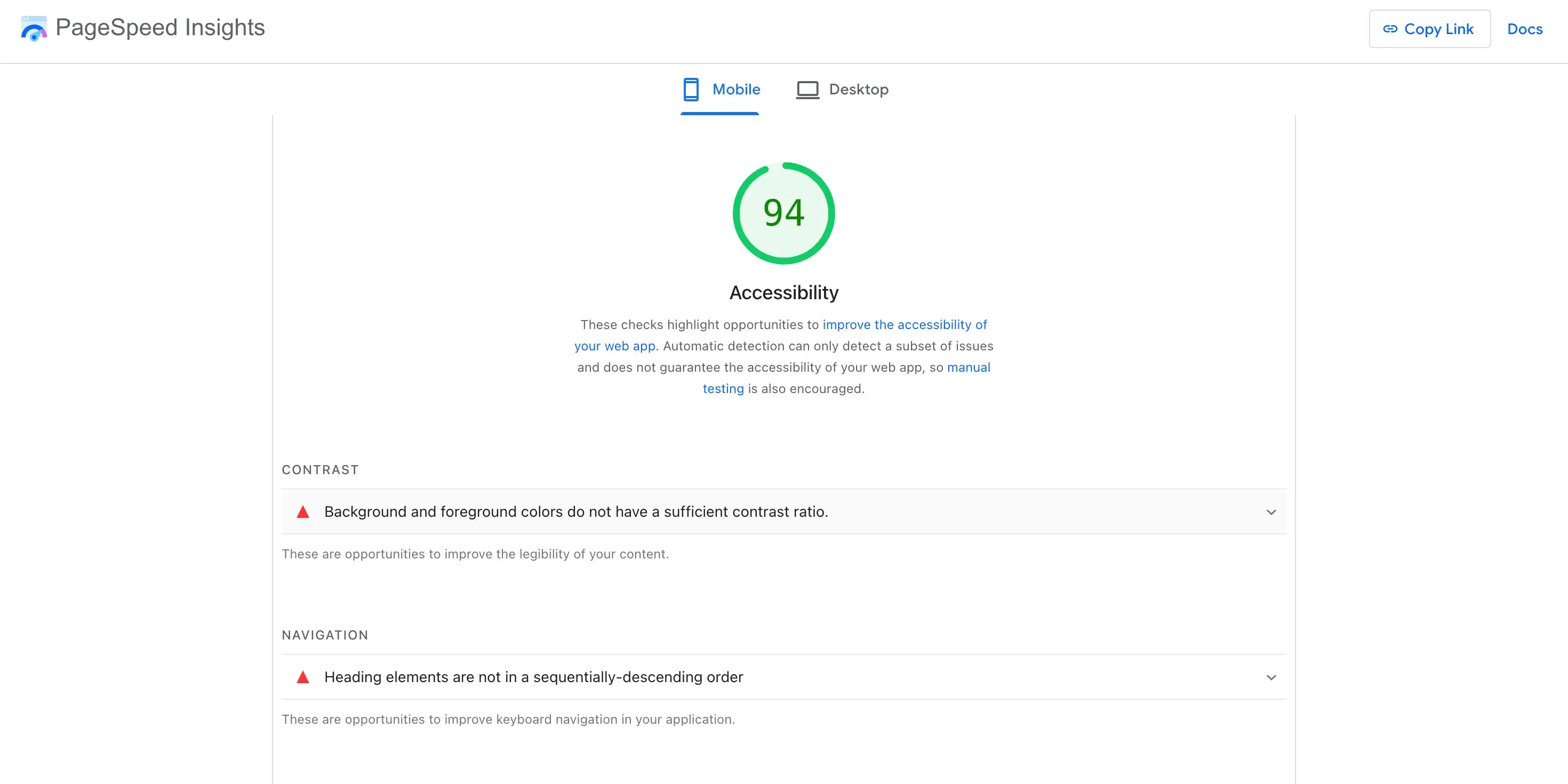
- PageSpeed Insights, if you already use it for site speed. PageSpeed Insights runs Lighthouse, which includes an accessibility score powered by the axe engine, so it flags many machine-detectable issues with no setup at all. It is the quickest starting point, though its accessibility report is briefer than a dedicated tool's.
- WAVE, for a more detailed, beginner-friendly view. The WAVE evaluation tool overlays every issue directly on your page with explanations, which makes it easy to see exactly where each problem is.
- axe DevTools, the browser extension that powers the engine behind both of the above, for the fullest standalone report.
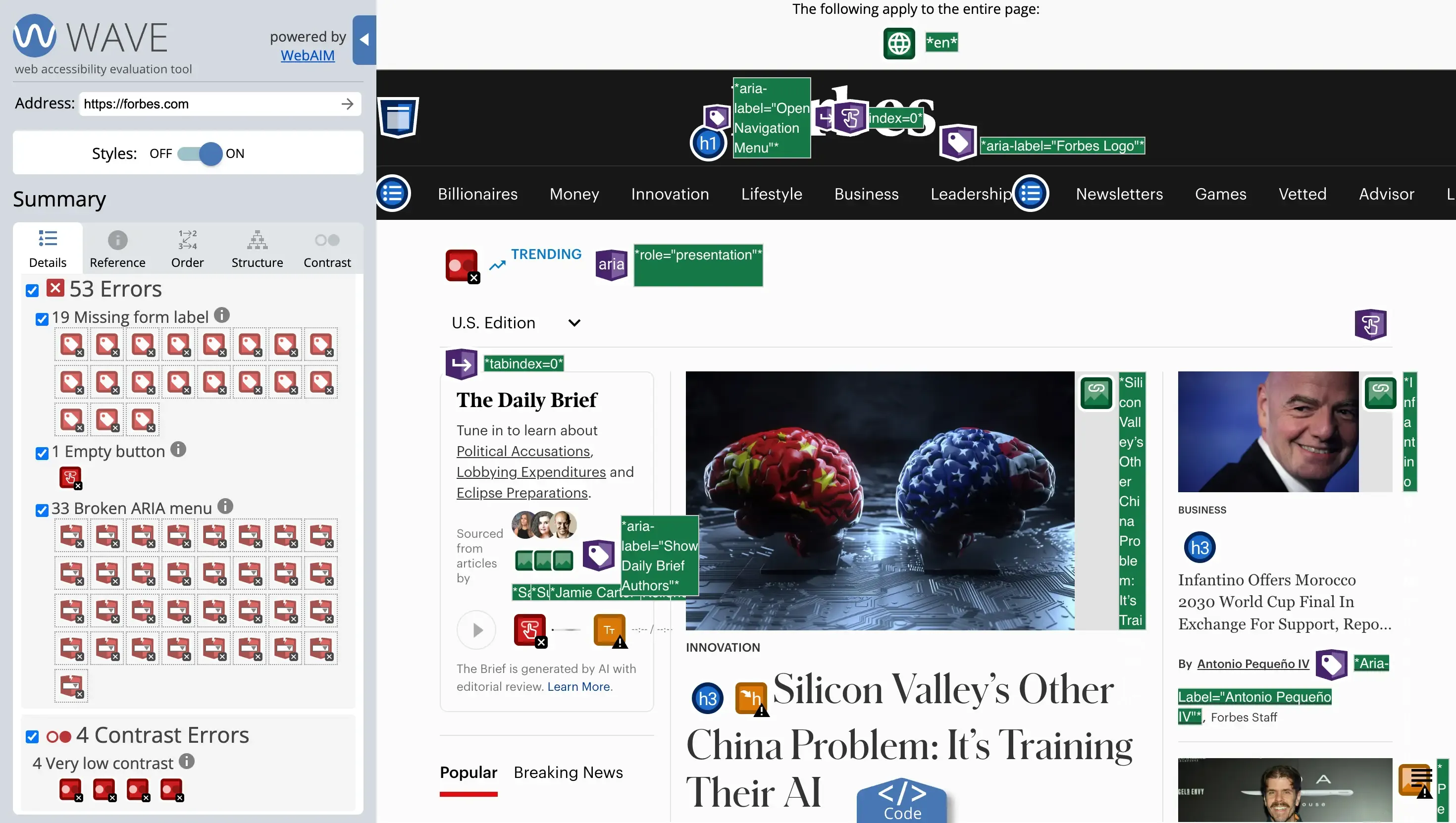
Automated scans reliably catch machine-detectable issues such as:
- Missing image alt text, so screen readers cannot describe images (Images)
- Insufficient color contrast between text and background (Color contrast)
- Missing or illogical heading structure and unclear focus order (Navigation)
- Keyboard traps or unreachable controls (Navigation)
- Unlabeled form fields, which make forms unusable without sight (Forms)
- Empty links and buttons with no readable text
Fixing everything an automated scan flags across these four areas removes a large share of the accessibility barriers on a typical site, and gives you a concrete compliance score to track over time.
Step 2: Do the Manual Accessibility Testing a Machine Cannot
Here is the limitation almost no one mentions: automated tools catch only part of the problem. Industry testing consistently finds that scanners detect roughly a third of WCAG issues. The rest require human judgment. Skipping this step is how a site can score well on a scanner and still be difficult for real users.
Manual accessibility testing sounds intimidating, but three checks cover most of the gap, and none of them require special software:
Keyboard navigation. Put your mouse aside and move through the whole site with Tab, Enter, and the arrow keys. Can you reach and use every link, button, menu, and form field? Can you always see where the focus is? Can you complete a purchase or a contact form? Keyboard inaccessibility is one of the most common real-world barriers.
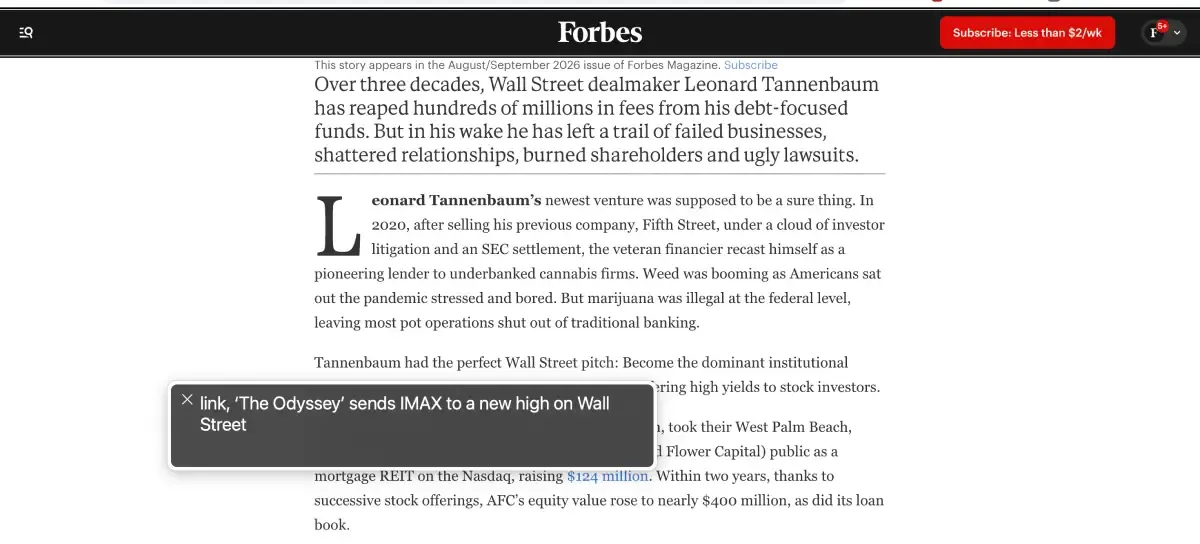
Screen reader test. Turn on the screen reader already built into your device (VoiceOver on Mac and iOS, Narrator on Windows, TalkBack on Android) and try to use your site with your eyes closed. It is awkward at first, and it is the fastest way to feel the barriers a real user hits.
Content and media. Check that videos have captions, that link text makes sense out of context (not "click here"), and that any information conveyed by color alone is also available another way.
Step 3: Fix in Order of Impact
You do not have to fix everything at once. Prioritize by how many users an issue affects and how common it is:
- Alt text, form labels, and contrast first. High frequency, and many fixes are quick
- Keyboard and focus next. High user impact
- Headings, link text, and structure. Important for screen reader navigation
- Media captions and transcripts. Necessary wherever you have video or audio
A note on accessibility overlay widgets, the pop-up tools that promise instant compliance: they can help some users but do not fix the underlying site, and they are widely criticized by accessibility experts as an incomplete solution. Fixing the actual markup is what makes a site genuinely usable.
Why One Check Is Never Enough
Here is the part that turns a passing scan into a false sense of security: accessibility does not stay fixed. Almost any change to your site can reintroduce a barrier.
A new blog post goes up with images that have no alt text. A theme update changes your color scheme and quietly breaks contrast. A new plugin adds a form with unlabeled fields. A redesign changes the heading structure and breaks keyboard order. None of this throws an error, and none of it is visible to a sighted owner clicking around with a mouse, so the site drifts back out of compliance exactly the way it drifts out of alignment on every other technical front, as our website decay timeline describes.
A one-time audit, however thorough, only describes the site as it was on the day you checked. It says nothing about the site as it is today, after three months of edits.
Step 4: Monitor Accessibility Continuously
The way to keep an accessible site accessible is to check it continuously rather than once, so a new barrier is caught when it is introduced instead of months later.
This is one of the areas where Kapient covers ground most website tools ignore. Under its Security and Compliance dashboard, Kapient runs a WCAG Accessibility check against the WCAG 2.1 AA standard and gives your site an accessibility score, with a compliance breakdown across the four areas above: images, color contrast, navigation, and forms. Because it runs as part of Kapient's continuous scan across more than 74 technical and quality factors, a barrier introduced by a new post or a theme update shows up in the score and the issue list rather than accumulating unseen.
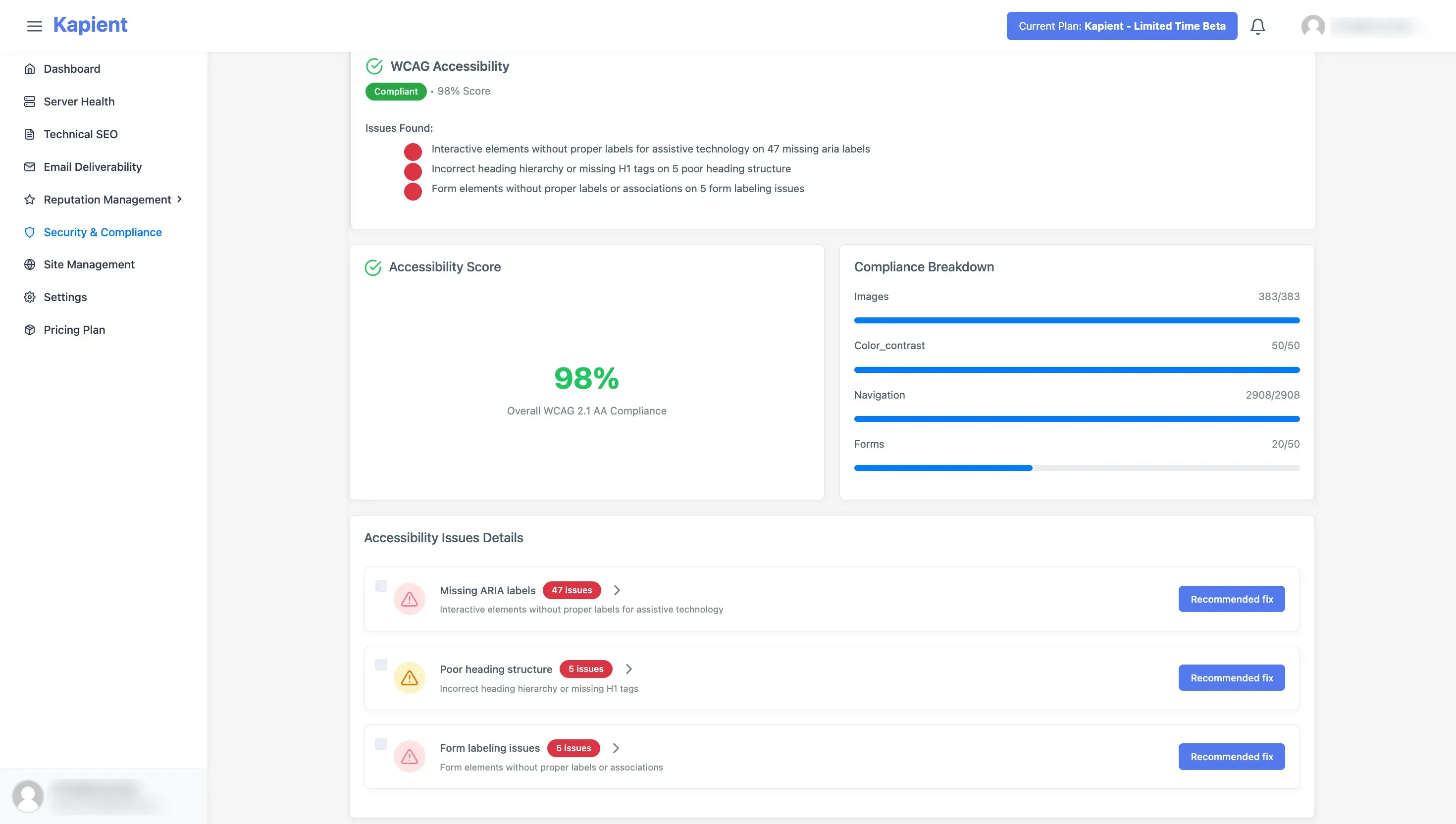
When it finds something, the flagged issue in your Kapient dashboard carries a "Recommended fix" button that reveals plain-English steps for correcting it, written for your actual platform rather than as generic WCAG jargon.
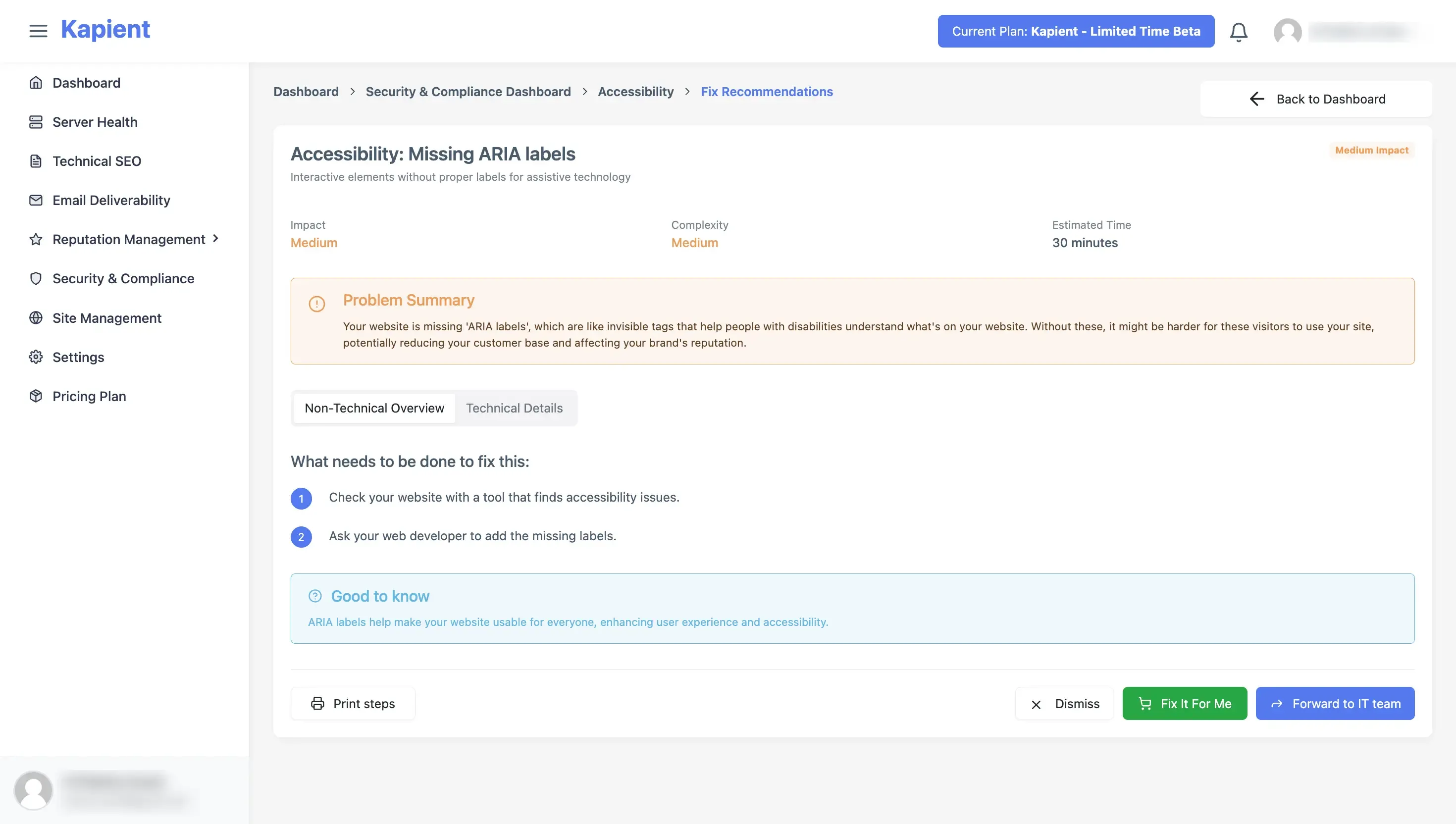
Accessibility sits alongside the dashboard's security and privacy checks, so it is tracked next to the other compliance factors a site carries rather than in a separate tool you have to remember to run.
To be clear about scope, this WCAG check covers the machine-detectable share of the standard, the same share automated accessibility scanners target, which is a large portion of the most common issues. It does not replace periodic manual testing for keyboard and screen reader usability, and it is not a substitute for professional accessibility auditing where that is required. What it does is make sure the machine-catchable issues never quietly pile back up between manual reviews.
For a designer or agency, a continuous accessibility score is a strong care plan inclusion and an easy one to justify, because the client's alternative is an unmonitored site slowly drifting out of compliance with no way to know. It sits naturally in the premium tier of a website care plan, alongside the other compliance monitoring, and the score gives the client something concrete to see in a monthly report.
Accessibility also connects to something you may already track: alt text serves both screen reader users and SEO, and missing alt text is one of the most common issues on both fronts. Keeping it in check is one more reason continuous accessibility monitoring pays for itself across more than compliance alone.
Is your website accessible today, or just on the day you last checked? Kapient continuously scores your site against WCAG 2.1 AA alongside 74+ other health factors, flags new barriers as they appear, and shows you exactly how to fix them. Start monitoring free and stop accessibility from quietly slipping away between audits.
Frequently Asked Questions
What is WCAG compliance?
WCAG compliance means a website meets the Web Content Accessibility Guidelines, the international standard maintained by the W3C for making web content usable by people with disabilities. Most websites aim for WCAG 2.1 Level AA, the middle conformance level that balances meaningful accessibility with what is realistically achievable, and it is the level most accessibility policies and legal frameworks reference.
How do I check a website for WCAG compliance?
Use two steps. First run an automated scanner such as WAVE or axe to catch machine-detectable issues in images, color contrast, navigation, and forms. Then do manual testing, keyboard-only navigation and a screen reader pass, for the issues a machine cannot judge. Both are needed, because automated tools catch only about a third of WCAG issues.
What is the WCAG checklist?
A practical WCAG 2.1 AA checklist covers: descriptive alt text on meaningful images, at least 4.5 to 1 text contrast, full keyboard operability with a visible focus indicator, a logical heading structure, descriptive link text, properly labeled form fields with clear error messages, captions and transcripts for media, a declared page language, and no content that flashes more than three times per second. The full specification has more criteria, but these are the most commonly failed and cited.
How do I do a WCAG audit?
A WCAG audit combines an automated scan, manual keyboard and screen reader testing, and a review against the WCAG 2.1 AA checklist, page by page across your key templates. Record each issue by area (images, color contrast, navigation, forms), fix in order of impact, and re-test. Because a site changes after the audit, pairing the one-time audit with continuous monitoring is what keeps the results from going stale.
Is there a WCAG checker?
Yes, several. Free browser-based checkers like WAVE and the axe extension test a page against WCAG and flag machine-detectable issues. These are ideal for a one-time check. For ongoing coverage, monitoring tools such as Kapient run a WCAG check continuously and give you a score that updates as your site changes, so new issues are caught automatically rather than only when you remember to run a scan.
How do I do accessibility testing manually?
Manual accessibility testing needs no special software. Navigate the entire site using only the keyboard (Tab, Enter, and arrow keys) and confirm you can reach and use everything with the focus always visible. Then turn on your device's built-in screen reader (VoiceOver, Narrator, or TalkBack) and try to use the site with your eyes closed. Finally, check that videos have captions, link text makes sense out of context, and no information is conveyed by color alone.
Can an automated tool make my website fully WCAG compliant?
No. Automated scanners catch roughly a third of WCAG issues, the machine-detectable ones, and are essential for that share. The rest, including keyboard navigation and screen reader usability, require manual testing and human judgment. Overlay widgets that promise instant compliance do not fix the underlying site and are widely regarded as an incomplete solution.
How often should I check my website for accessibility?
Continuously, because accessibility breaks again every time content or code changes: a new post without alt text, a theme update that breaks contrast, a plugin that adds an unlabeled form. A one-time audit only reflects the site on the day it was checked, so ongoing monitoring is what keeps a site compliant as it changes.