Document Remediation
TL;DR: Document remediation is the process of fixing an existing digital document, most often a PDF, so it can be read and used by people with disabilities and conforms to accessibility standards like WCAG and PDF/UA. It involves tagging content, setting a logical reading order, adding alt text, and making tables and forms usable by assistive technology. Most documents cost roughly 5 to 25 dollars per page to remediate and take around 30 minutes of manual work per page.
What is document remediation?
Document remediation is the corrective work of taking a file that was not built with accessibility in mind and repairing it so that keyboard-only users, screen reader users, and anyone relying on assistive technology can have the same access to information as everyone else.
Document remediation assumes the files already exist and have accessibility issues, and the goal is to fix them without changing their meaning or visual design.
The most common target of document remediation is the PDF, but it also applies to other document types, such as Word, PowerPoint, and Excel.
The reason document remediation exists is that most documents are not accessible by default. A PDF exported from a design tool may appear visually correct, but to a screen reader, it can be just a collection of content with no proper structure to tell it what is a heading, what order to read the content in, or what an image represents.
Remediation adds that missing structure. The standards it works against are the Web Content Accessibility Guidelines (WCAG) and PDF/UA (ISO 14289), the technical standard built specifically for PDF accessibility. In the United States, Section 508 and the ADA sit on top of these, and recent Department of Justice rules have set WCAG conformance deadlines for public entities in 2026 and 2027, which is why demand for remediation has climbed sharply.
What actually gets fixed
Remediation is not one task but a cluster of related fixes. The table below shows the elements a remediator works through on a typical document.
| Document element | Why it fails | How it is remediated |
|---|---|---|
| Text and headings | Untagged text reads as one undifferentiated block | Tag headings and body text so structure and navigation work |
| Reading order | Content is read in the wrong sequence | Set a logical reading order that matches the visual flow |
| Images | Screen readers cannot interpret an image | Add clear, meaningful alt text, or mark decorative images to be skipped |
| Tables | Data cells lose their row and column meaning | Tag header cells and ensure cells are read in a sensible order |
| Lists | Bulleted or numbered items read as loose text | Tag them as proper lists so their structure is announced |
| Forms | Fields cannot be identified or completed | Label every field and set a logical tab order |
| Links | "Click here" tells a screen reader nothing | Give links descriptive, meaningful text |
| Language and metadata | Assistive tech cannot detect the document language or title | Set the document language, title, and bookmarks for navigation |
The document remediation process, step by step
Whether done in-house or outsourced, remediation follows a consistent path.
1. Start with the source when you can
The easiest document to remediate is one that was built accessibly in the first place. If you still have the source file in Word, PowerPoint, or a design tool, applying styles, alt text, and structure there before exporting to PDF saves significant work. Remediation is what you do when that is no longer an option or when the exported file still falls short.
2. Run an accessibility check
Start by measuring the document against the standard. Tools like Adobe Acrobat Pro's accessibility checker and the free PAC (PDF Accessibility Checker) flag machine-detectable issues quickly. This is essential, but it is only a starting point. Automated checkers typically catch only 20 to 30 percent of accessibility issues, because judgments like whether alt text is actually meaningful or whether the reading order makes sense require a human.
3. Tag and fix the document
This is the core manual work: adding or correcting tags, fixing the reading order, writing alt text, marking up tables and lists, labeling form fields, and setting the document language and title. This is where the elements in the table above get resolved one by one.
4. Validate with tools and people
A remediated document should pass an automated check with no errors, but it should also be tested by a person, ideally with a screen reader, to confirm it actually makes sense in use. A file can pass a checker and still be confusing to navigate, so human validation is the difference between technically error-free and truly accessible.
How much does document remediation cost, and how long does it take?
Cost and turnaround are the two questions buyers ask most, so here are realistic ranges based on current market pricing.
| Document complexity | Typical cost per page | Rough time per page |
|---|---|---|
| Simple (text, headings, a few images) | 5 to 8 dollars | 15 to 20 minutes |
| Moderate (images, lists, basic tables) | 8 to 15 dollars | 20 to 40 minutes |
| Complex (forms, charts, multi-column, scanned) | 15 to 25+ dollars | 45+ minutes |
The averages hold at roughly 5 to 25 dollars per page and about 30 minutes of manual work per page, with complexity being the biggest driver. A 200-page text report is far cheaper per page than a 10-page document packed with tables and charts. For large inventories, the totals add up fast, which is why organizations with thousands of documents treat remediation as a major line item rather than an afterthought.
Where document remediation ends and live-site accessibility begins
Here is a distinction that trips up a lot of people, and it matters for what you actually need. Document remediation fixes files. It does not fix the website those files live on.
Your PDFs, your Word downloads, and your presentations are one accessibility surface. Your live web pages, the actual HTML that visitors browse, are a completely separate one. You can remediate every document you host and still have a website that fails WCAG, because the two are governed by different work. Remediation is largely a one-time project per file. A website, by contrast, changes constantly, and every new page, image, or template update can introduce a fresh accessibility barrier.
That difference is why the maintenance model is different too. A remediated document, once archived, stays as it is. A live site drifts out of conformance the moment someone publishes a post without alt text or ships a redesign with poor contrast, and nothing warns you when it happens.
How Kapient covers the live-site side
This is the piece document remediation does not touch. Kapient monitors your live website against WCAG on an ongoing basis, so the accessibility issues that appear on your actual pages as content changes get caught as they happen.
To be clear about scope, Kapient does not remediate documents. It does not tag PDFs or fix reading order inside a file. What it does is watch the live-site factors most likely to break with everyday edits:
- Images on your pages missing meaningful alt text.
- Color contrast that drops below WCAG thresholds after a design change.
- Keyboard and navigation issues that block people who do not use a mouse.
- Forms on your pages with missing or unclear labels.
When Kapient finds an issue, it sends an email alert so you know something needs attention, and inside the dashboard it gives you a "Recommended fix" button with plain-English, step-by-step guidance tailored to your platform, whether you build on WordPress, Wix, Squarespace, Shopify, or Webflow.
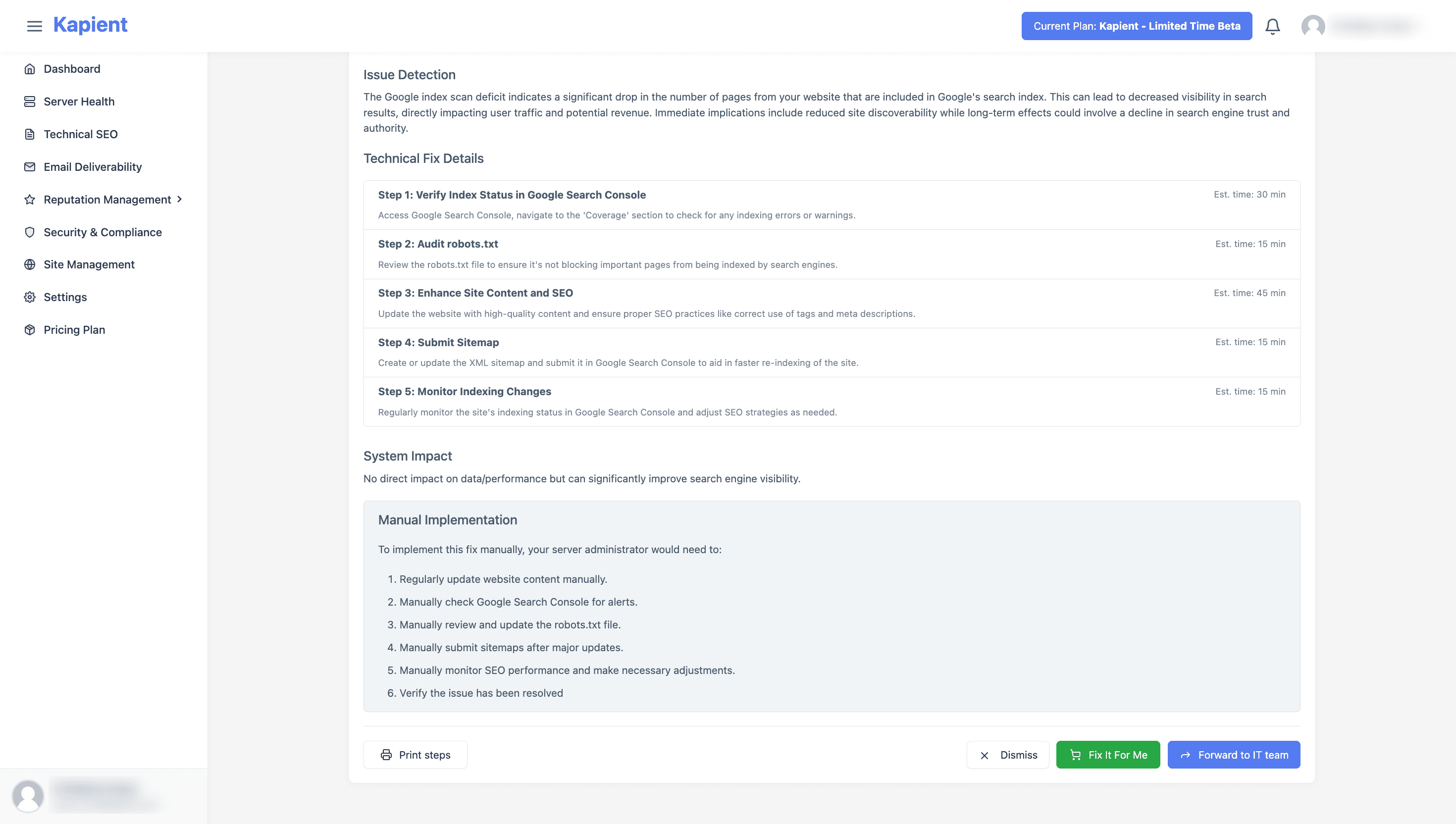
So the practical split is straightforward: use a document remediation tool or service for your files, and use Kapient to keep the website itself from quietly slipping out of conformance. The two together are what full accessibility actually looks like. For the broader picture of fixing accessibility across a site, see our accessibility remediation entry.
Documents are only half the picture. Even perfectly remediated files sit on a website whose live pages drift out of WCAG conformance with every update. Start monitoring your site with Kapient so a new accessibility barrier never goes unnoticed.
Frequently asked questions
What is document remediation? Document remediation is the process of fixing an existing digital document, such as a PDF, Word file, or PowerPoint, so it is accessible to people with disabilities and conforms to standards like WCAG and PDF/UA. The work includes tagging content, setting a logical reading order, adding alt text, and making tables and forms usable by assistive technology.
How do you remediate a PDF document? You remediate a PDF by running it through an accessibility checker to find issues, then correcting them: tagging headings and text, fixing the reading order, adding alt text to images, marking up tables and lists, labeling form fields, and setting the document language and title. After tagging, you validate the file with both an automated checker and a human test, ideally using a screen reader, since tools alone catch only a fraction of the issues.
What exactly is remediation? In an accessibility context, remediation is the corrective act of fixing something that already exists so it meets a required standard. For documents, that means repairing an inaccessible file. For websites, it means fixing barriers on live pages. In both cases it is distinct from an audit, which only finds the issues, and from building something accessibly from the start.
How much does it cost to remediate a PDF document? Most PDF remediation costs between 5 and 25 dollars per page, with typical documents landing around 5 to 8 dollars and complex files with forms, tables, and charts costing more. The main cost driver is complexity, not length, so a short document full of graphics can cost more per page than a long, mostly text report.
What is an example of remediation? A common example is a PDF report exported from a design tool with no tags. A screen reader would read it as a jumble or skip it entirely. Remediating it means adding heading and paragraph tags, writing alt text for its charts, tagging its tables so the data keeps its meaning, and setting a reading order, so a screen reader user can navigate and understand it just like a sighted reader.
How long does PDF remediation take? Manual remediation averages about 30 minutes per page, though a simple text page may take 15 minutes and a complex page with forms or charts can take well over 45 minutes. Turnaround for a full project depends on volume and complexity, so a large or highly graphical document set takes proportionally longer.
Written by the Kapient team. Last updated: August 22, 2026.