How to Fix Slow Page Load Time (10 Fixes Ranked by Impact)
A slow website loses visitors before they see anything. The fix is rarely one magic setting. It is usually three or four compounding problems: oversized images, a cheap server, too much JavaScript, and no caching, stacked on top of each other. This guide walks through the ten fixes that matter, ranked by how much speed they typically recover, so you spend your effort where it counts.

Khul Anwar
Growth
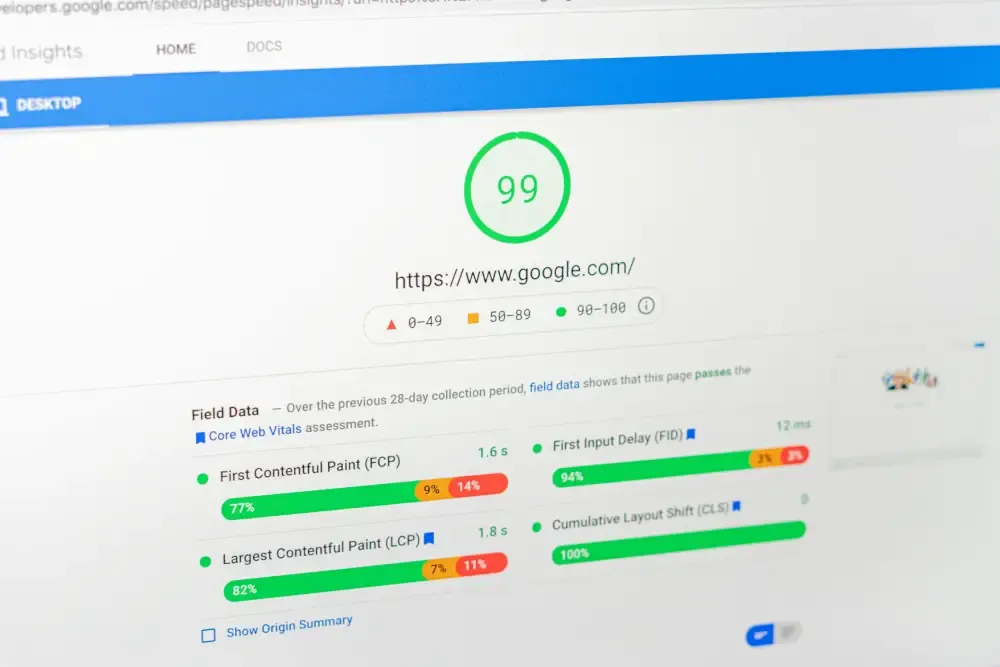
TL;DR: To fix slow page load time, start with the fixes that move the needle most: compress and resize images, enable page caching, upgrade weak hosting, and cut unnecessary JavaScript and plugins. Then layer on a CDN, lazy loading for below-the-fold images, font optimization, and database cleanup. Aim for a load time under 3 seconds on mobile. Test with PageSpeed Insights before and after each change so you know what actually worked.
A slow website loses visitors before they see anything. The fix is rarely one magic setting. It is usually three or four compounding problems: oversized images, a cheap server, too much JavaScript, and no caching, stacked on top of each other. This guide walks through the ten fixes that matter, ranked by how much speed they typically recover, so you spend your effort where it counts.
First: How Slow Is Slow?
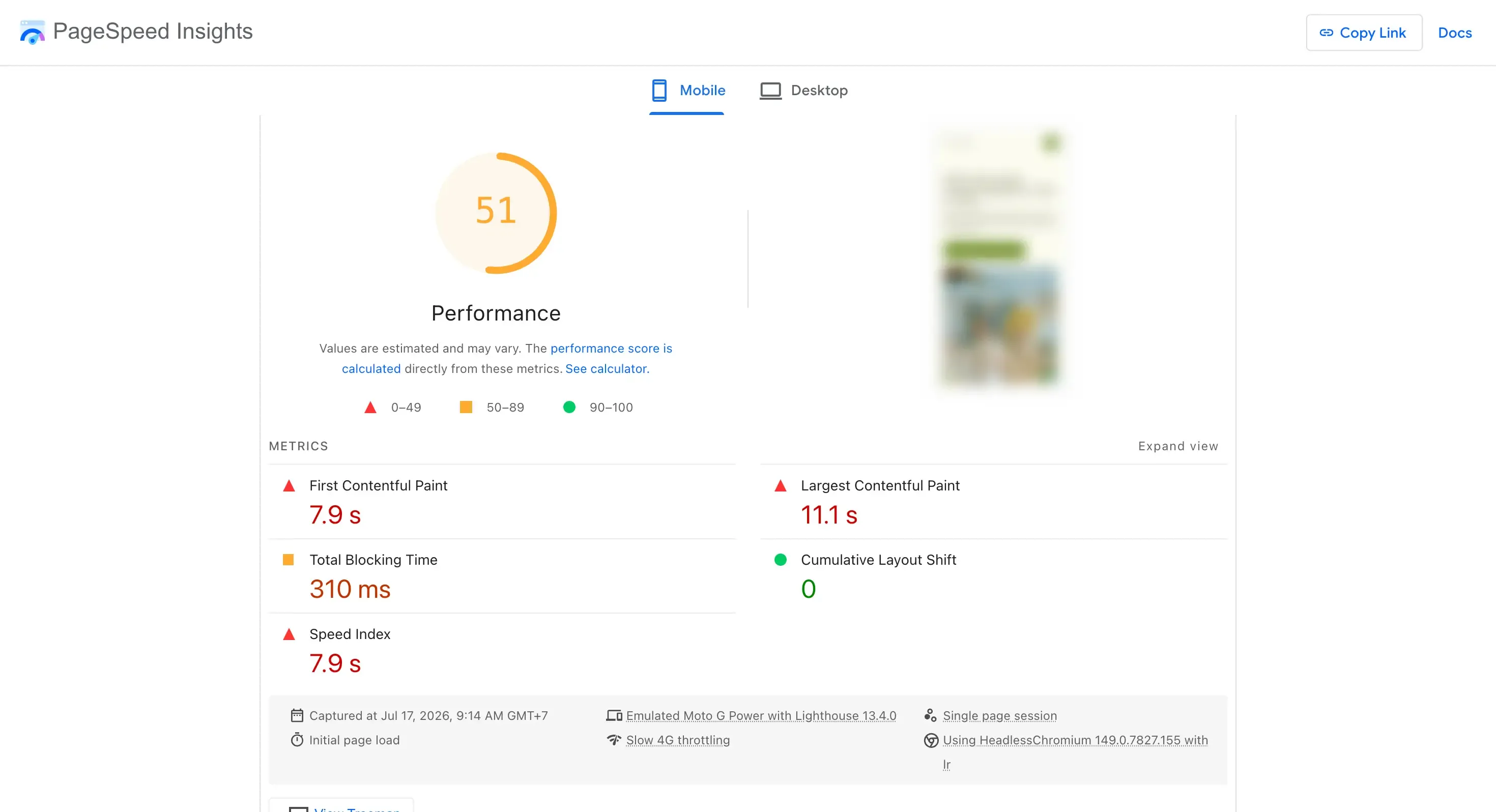
Before fixing anything, get a baseline. Run your site through PageSpeed Insights on mobile, because mobile is slower, stricter, and where most of your traffic lives.
The benchmarks that matter:
- Under 3 seconds to fully usable is the practical target for most business sites
- Largest Contentful Paint under 2.5 seconds is Google's Core Web Vitals threshold for your main content appearing
- Time to first byte under 800 ms tells you whether your server itself is part of the problem
Speed is not vanity. Google reports that the probability of a bounce increases 32 percent as load time goes from 1 to 3 seconds. Every second you recover is measurable revenue, not just a better score.
The 10 Fixes, Ranked by Impact
1. Compress and Resize Your Images
Images are the heaviest thing on most pages and the most common reason a site is slow. Three rules:
- Resize to display size. A photo displayed 800 pixels wide should not be uploaded at 4000 pixels
- Convert to WebP or AVIF, which cut file size 30 to 50 percent versus JPEG at the same quality
- Compress everything, ideally automatically at upload
On WordPress, an image optimization plugin handles all three. On Wix and Squarespace, the platform compresses for you, but uploading reasonably sized originals still matters.
2. Enable Page Caching
Without caching, your server rebuilds every page from scratch for every visitor. With caching, it serves a saved copy in a fraction of the time. This is the single biggest server-side win on WordPress, where a caching plugin can cut load time in half on its own.
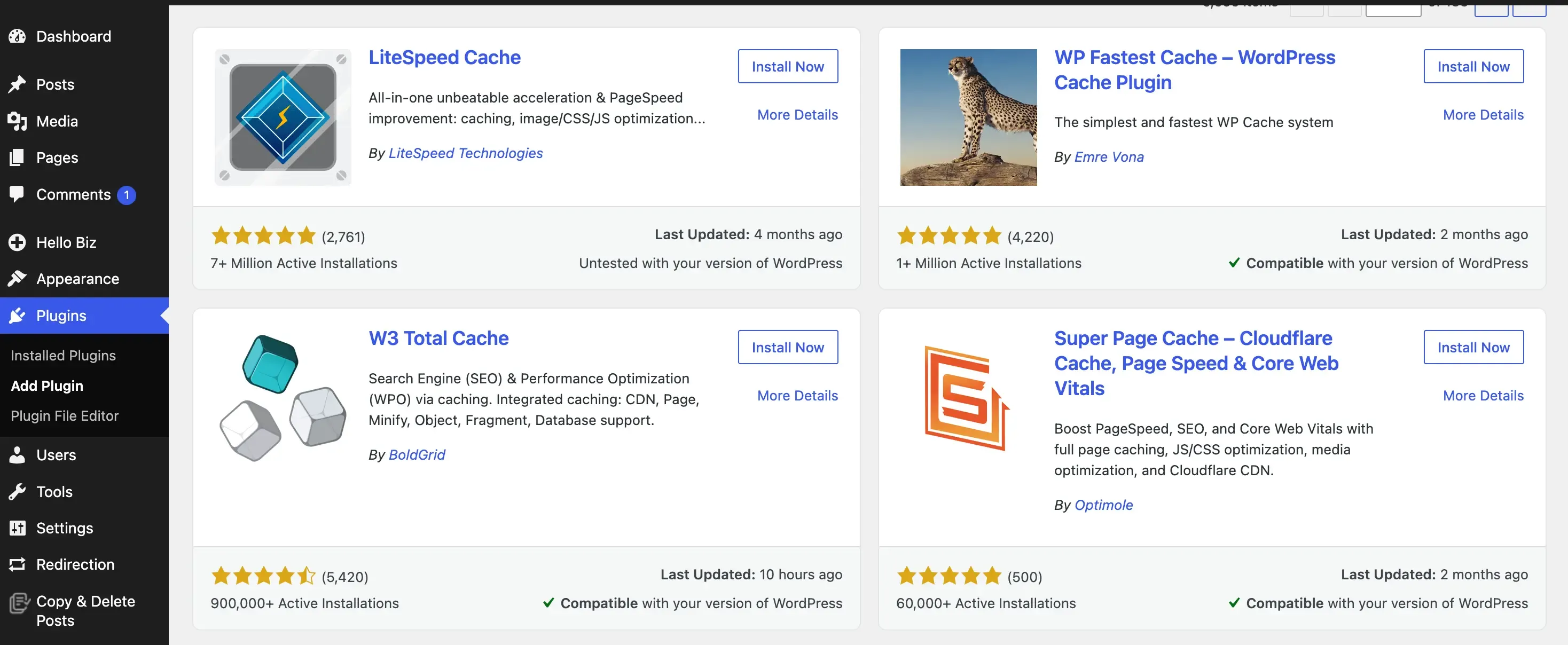
Wix and Squarespace handle caching automatically, which is one less thing to configure.
3. Fix Your Hosting
If your time to first byte is consistently over 800 ms even with caching enabled, your hosting is the bottleneck, and no amount of front-end optimization fully compensates. Overloaded shared hosting is the usual culprit. Moving from bargain shared hosting to a decent managed plan is often the difference between a 4-second site and a 2-second site with zero code changes.
4. Cut JavaScript and Plugins
Every script your page loads costs download time and, worse, main-thread execution time that freezes the page. Remove plugins you no longer use, delete leftover tracking snippets from tools you cancelled, and defer scripts that are not needed for the first paint.
If your site paints quickly but feels frozen when you try to tap something, JavaScript is your problem specifically. Our guide to Total Blocking Time covers that diagnosis in depth.
5. Use a CDN
A content delivery network serves your images and static files from servers near each visitor instead of from one origin. For a local business with local customers the gain is modest. For any site with visitors spread across regions, it is substantial. Many hosts and platforms now include a CDN by default, so check before paying for one.
6. Lazy Load Below-the-Fold Images
Images further down the page should not compete for bandwidth with the content visitors see first. Modern platforms and WordPress enable lazy loading by default.
The one warning: make sure your hero image is not lazy loaded, because that delays your most important element. That mistake is common enough that we wrote a full guide on fixing your Largest Contentful Paint element.
7. Optimize Fonts
Web fonts block text from appearing while they download. Use font-display: swap so text renders immediately in a fallback font, limit yourself to two font families, and self-host fonts rather than pulling them from a third-party origin.
8. Minify CSS, JavaScript, and HTML
Minification strips whitespace and comments from your code files. The gains are smaller than the fixes above, but it is effectively free: most caching plugins and platforms do it with a checkbox.
9. Clean Up Your Database
Applies mainly to WordPress. Years of post revisions, spam comments, and expired transients bloat the database and slow every uncached page load. A cleanup plugin run monthly keeps it lean.
10. Reduce Redirects
Every redirect adds a round trip before the real page even starts loading. Chains like http to https to www to the final page can add half a second before anything happens. Point internal links and menus directly at the final URL.
Work in This Order
If the list feels long, here is the priority sequence for a typical slow site:
- Test and record your baseline
- Images (fix 1) and caching (fix 2), which together solve the majority of slow sites
- Retest. If time to first byte is still high, address hosting (fix 3)
- JavaScript and plugin audit (fix 4)
- Everything else as polish
Retest after each step, not just at the end, so you know which change did what.
The Part Nobody Tells You: Speed Decays
Every fix on this list can quietly come undone. A colleague uploads a 5 MB photo straight from their phone. A plugin update ships a heavier script. A new marketing tag gets added without anyone testing afterward. The site that loaded in 2 seconds in January is loading in 5 by June, and because the decline is gradual, nobody on the inside notices. Your visitors do, and your search rankings follow. We mapped this pattern in detail in our website decay timeline.
Manual retesting depends on someone remembering to do it. That is the weak link, and it is where continuous monitoring replaces good intentions.
Kapient scans your website 24/7 across more than 74 technical and quality factors, including performance slowdowns, and emails you an alert when speed degrades instead of waiting for you to run a test.
From there, your Kapient dashboard shows the flagged issue, and clicking "Recommended fix" reveals plain-English instructions for what changed and how to fix it, matched to your stack, whether that is WordPress, Wix, or Squarespace.
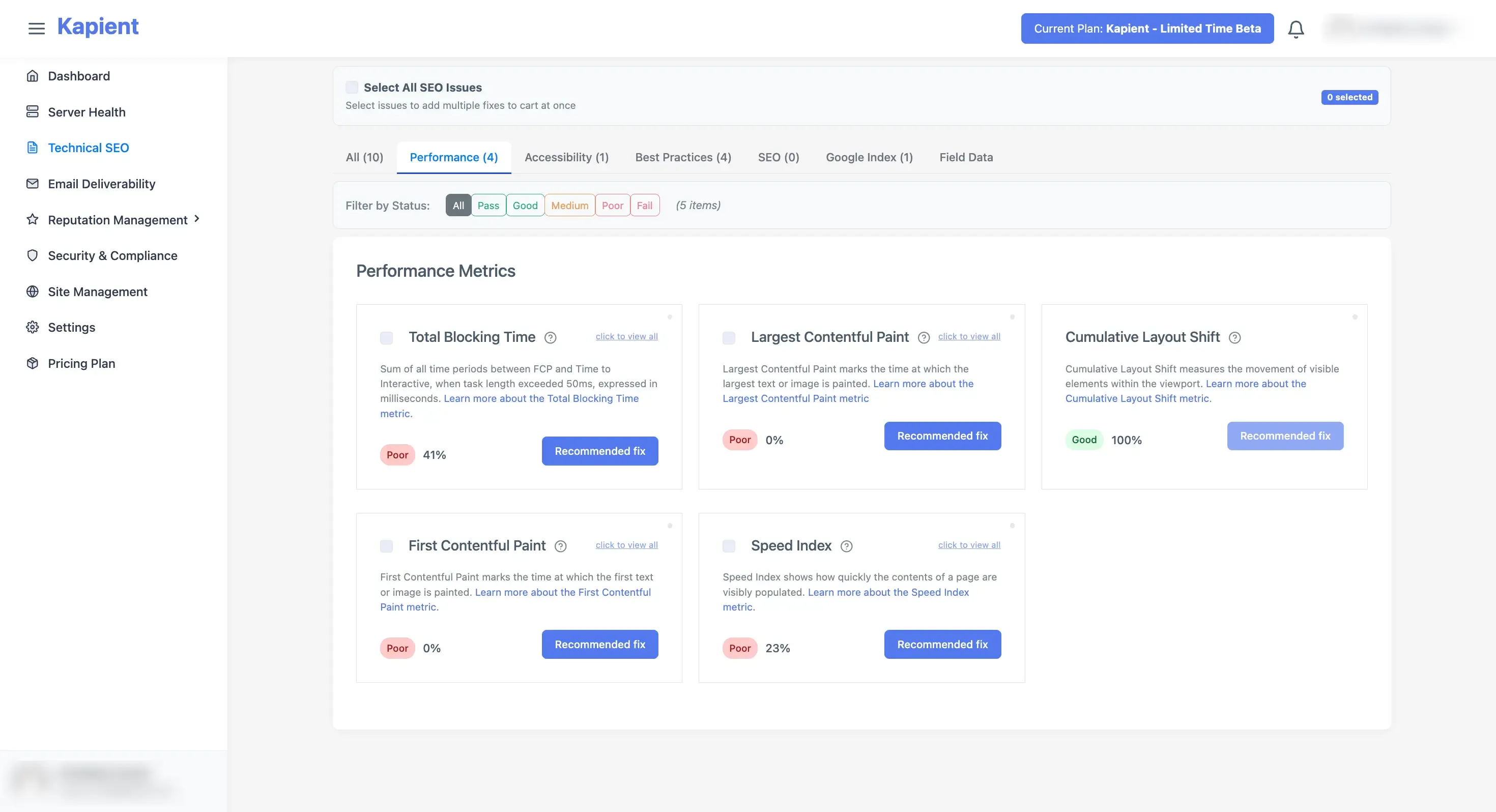
If you are a freelancer or agency managing client sites on retainer, that means you catch the regression the day the client's team uploads the giant photo, and your monthly report shows the problem found and fixed before it cost them anything.
Show Image A speed regression caught the day it happens instead of the quarter after.
Fast today does not mean fast next month. Kapient watches your website around the clock, catches slowdowns and hidden errors as they appear, and tells you exactly how to fix them. Start your free scan and keep the speed you worked for.
Frequently Asked Questions
What is a good page load time?
Under 3 seconds on mobile is the practical target for most business websites, with your main content appearing within 2.5 seconds to meet Google's Largest Contentful Paint threshold. Under 2 seconds is excellent.
Why is my website suddenly slow?
Sudden slowdowns usually trace to a recent change: a new plugin or plugin update, a large uploaded image, a new third-party script, or a hosting issue. Check what changed in the days before the slowdown, and test time to first byte to rule your server in or out.
Do images really slow down a website that much?
Yes. Images are typically the largest share of a page's total weight, and a single uncompressed photo can outweigh all your code combined. Resizing, compressing, and converting to WebP is the highest-impact fix on most slow sites.
Does slow page load time affect SEO?
Yes, two ways. Core Web Vitals, including Largest Contentful Paint, are part of Google's page experience signals. And slow pages increase bounce rates, which suppresses the engagement your rankings depend on.
How do I fix slow load time on WordPress specifically?
Install a caching plugin, add an image optimization plugin, remove unused plugins, and delay non-critical JavaScript. If time to first byte stays above 800 ms after caching, upgrade your hosting. Those five steps fix the large majority of slow WordPress sites.
How often should I test my website speed?
After every significant change, and on a regular schedule regardless, because speed regresses gradually as content and plugins accumulate. Better still, use continuous monitoring so slowdowns are caught automatically instead of depending on someone remembering to test.
Written by
Khul Anwar
Growth
Khulanwar leads content and growth at Kapient, where the team helps small businesses and agencies keep their websites healthy, fast, and compliant. He writes about website monitoring, technical SEO, and the maintenance work that quietly keeps sites from breaking after launch.
Related articles
SEO Metrics: The 15 That Actually Matter in 2026 (and the Ones to Ignore)
August 21, 2026

Website Migration Checklist: The Complete Guide to Migrating Without Losing Traffic
August 19, 2026

How to Remove Hacked Spam Pages That a Hacker Indexed on Your Domain
August 11, 2026

SSL Certificate Expired: How to Fix It and Stop It Happening Again
July 24, 2026