SSL Certificate Expired: How to Fix It and Stop It Happening Again
An expired certificate is one of the few website failures with no gradual warning. One hour your site is fine, the next every visitor hits a full-page "Your connection is not private" screen and most of them leave immediately. Google's crawler sees it too. The good news is that fixing it usually takes under fifteen minutes. The part worth your attention is the second half of this guide: making sure it never happens again, because the renewal window is getting shorter every year.

Khul Anwar
Growth

TL;DR: An expired SSL certificate makes every browser block your site with a full-page security warning, and it usually happens because automatic renewal failed silently. To fix it: confirm the expiry date, then renew through your host's SSL panel, your CDN, or by re-running your certificate tool. Most hosts reissue a free certificate in minutes. After renewing, clear your cache, force HTTPS, and fix any mixed content warnings. Certificate lifetimes are shrinking industry-wide, from 200 days now to 47 days by 2029, so renewal frequency is going up and manual tracking is becoming unworkable.
An expired certificate is one of the few website failures with no gradual warning. One hour your site is fine, the next every visitor hits a full-page "Your connection is not private" screen and most of them leave immediately. Google's crawler sees it too. The good news is that fixing it usually takes under fifteen minutes. The part worth your attention is the second half of this guide: making sure it never happens again, because the renewal window is getting shorter every year.
What an Expired Certificate Actually Does
Your SSL/TLS certificate proves to browsers that the connection to your site is encrypted and that you are who you claim to be. Every certificate has a hard expiry date. The moment it passes, browsers stop trusting the connection and show an interstitial warning instead of your site.
What visitors see depends on their browser:
- Chrome: "Your connection is not private" with error code
NET::ERR_CERT_DATE_INVALID - Firefox: "Warning: Potential Security Risk Ahead"
- Safari: "This Connection Is Not Private"
All of them require a deliberate click through a scary warning to continue. Almost nobody does that. In practical terms your website is offline, and unlike a server outage, your host will not notice or alert you.
The damage compounds quickly. Forms stop being submitted, e-commerce checkouts fail, embedded scripts break on other sites, and if the outage runs long enough, Google may drop affected pages from the index.
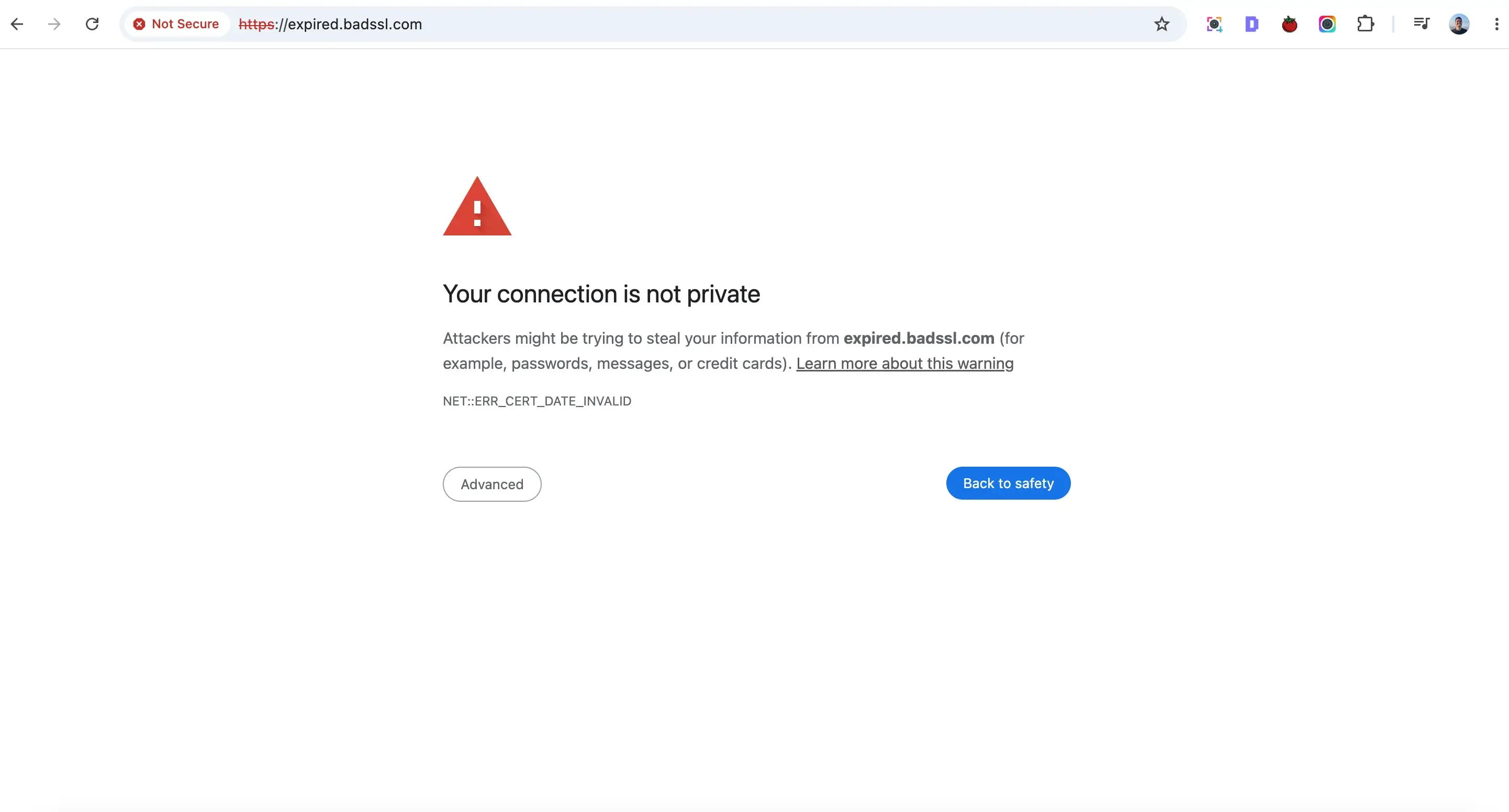
This is what every visitor sees the moment the certificate lapses. Most leave without clicking through.
Step 1: Confirm the Certificate Is Really the Problem
Before touching anything, verify the diagnosis. Not every "not secure" warning is an expiry.
Click the padlock or warning icon in your browser's address bar, open the certificate details, and read the validity dates. Or run your domain through a free checker like SSL Labs, which reports the expiry date, the issuing authority, and any chain problems.
Three outcomes:
- Expired certificate. The "valid to" date has passed. Continue to Step 2.
- Name mismatch. The certificate is valid but issued for a different hostname, often
example.comwhen visitors arrive atwww.example.com. You need a certificate covering both, which most free certificates do by default. - Incomplete chain. The certificate is valid but an intermediate certificate is missing. Reissuing usually resolves it.
Step 2: Renew the Certificate
How you renew depends on where the certificate came from. Work through whichever applies.
If your host issues free SSL (most shared and managed hosts)
Log into your hosting control panel and find the SSL or security section. In cPanel this is SSL/TLS Status; managed hosts usually have an SSL toggle in the site settings. Look for an option to run or re-run AutoSSL, or to reissue the certificate. In most cases this reissues within a few minutes.
If the button fails, the cause is nearly always one of these:
- DNS points elsewhere. The domain must resolve to this server for validation to succeed. Common after a recent migration
- A redirect is blocking validation. The validation request must reach the server unredirected. Temporarily disabling a forced HTTPS redirect or a security plugin often unblocks it
- The domain is behind a proxy such as Cloudflare, in which case see below
If you use Cloudflare or another CDN
Two certificates exist in this setup: the edge certificate between visitors and Cloudflare, and the origin certificate between Cloudflare and your server. Check which one expired.
Edge certificates renew automatically in most cases. If yours did not, check that your SSL/TLS mode is set to Full (strict) and that the domain's DNS records are proxied. Origin certificates are issued by you and are the more common failure, since nothing renews them for you.
If you run your own server with Let's Encrypt
Certificates from Let's Encrypt last 90 days and renew via automation. When one expires, the automation broke. Renew manually first, then find out why.
Common causes: the renewal timer or cron job stopped running, a web server config change broke the validation path, the certificate tool was upgraded and lost its configuration, or the account email bounced and renewal notices went unseen.
If you bought a paid certificate
Log into the certificate authority's dashboard, purchase the renewal, complete domain validation, and install the new certificate files through your host. This route takes longest, sometimes hours if validation requires DNS changes. If you have no specific reason for a paid certificate, this is a good moment to switch to a free automated one, since browsers treat them identically.
Step 3: Verify and Clean Up
Renewing is not finishing. Four checks:
- Confirm the new certificate is live. Open your site in a private window and check the padlock. Run SSL Labs again for the new expiry date. If the old certificate is still showing, clear your server and CDN cache, since cached certificates are a common false alarm
- Force HTTPS. Every
http://request should redirect tohttps://in a single hop. Chains like http to www to https add load time and occasionally break - Fix mixed content. If any image, script, or stylesheet still loads over
http://, the padlock stays broken even with a valid certificate. Your browser console lists every offending resource - Check both hostnames. Test
yoursite.comandwww.yoursite.com. A certificate covering only one is a frequent cause of repeat warnings
Why This Keeps Happening (and Is About to Get Worse)
Nearly every expired certificate started with automation that was supposed to prevent exactly this. The renewal ran fine for a year, then a config change, an expired API token, or a DNS edit broke it, and nothing said a word.
That is the entire problem: certificate renewal fails silently, and only announces itself by taking your site down. The expiry warning emails go to whichever address was used at setup, often a developer who has since left or an inbox nobody reads.
And the window is closing. Following a CA/Browser Forum decision in 2025, maximum certificate lifetimes are being cut in stages:
| Effective date | Maximum certificate lifetime |
|---|---|
| Until March 2026 | 398 days |
| March 2026 | 200 days |
| March 2027 | 100 days |
| March 2029 | 47 days |
The first cut is already in force. Where a site owner once faced one renewal a year, it is now roughly two, will soon be four, and by 2029 close to eight. Every renewal is another chance for silent automation failure. Manual tracking on a calendar was already unreliable. At 47 days it stops being a strategy at all.
The Only Fix That Holds: Watch It Continuously
You cannot prevent renewal automation from breaking. You can make sure you know before your visitors do, and the gap between those two facts is where the entire cost of an expired certificate lives. Fixing this takes fifteen minutes. Not knowing about it for three days is what costs you the sales, the rankings, and the client's confidence.
That is the gap Kapient closes. It monitors your SSL certificate status continuously as part of a scan across more than 74 technical and quality factors, and emails you an alert when a certificate is heading for expiry or has failed, well before a browser starts blocking visitors.
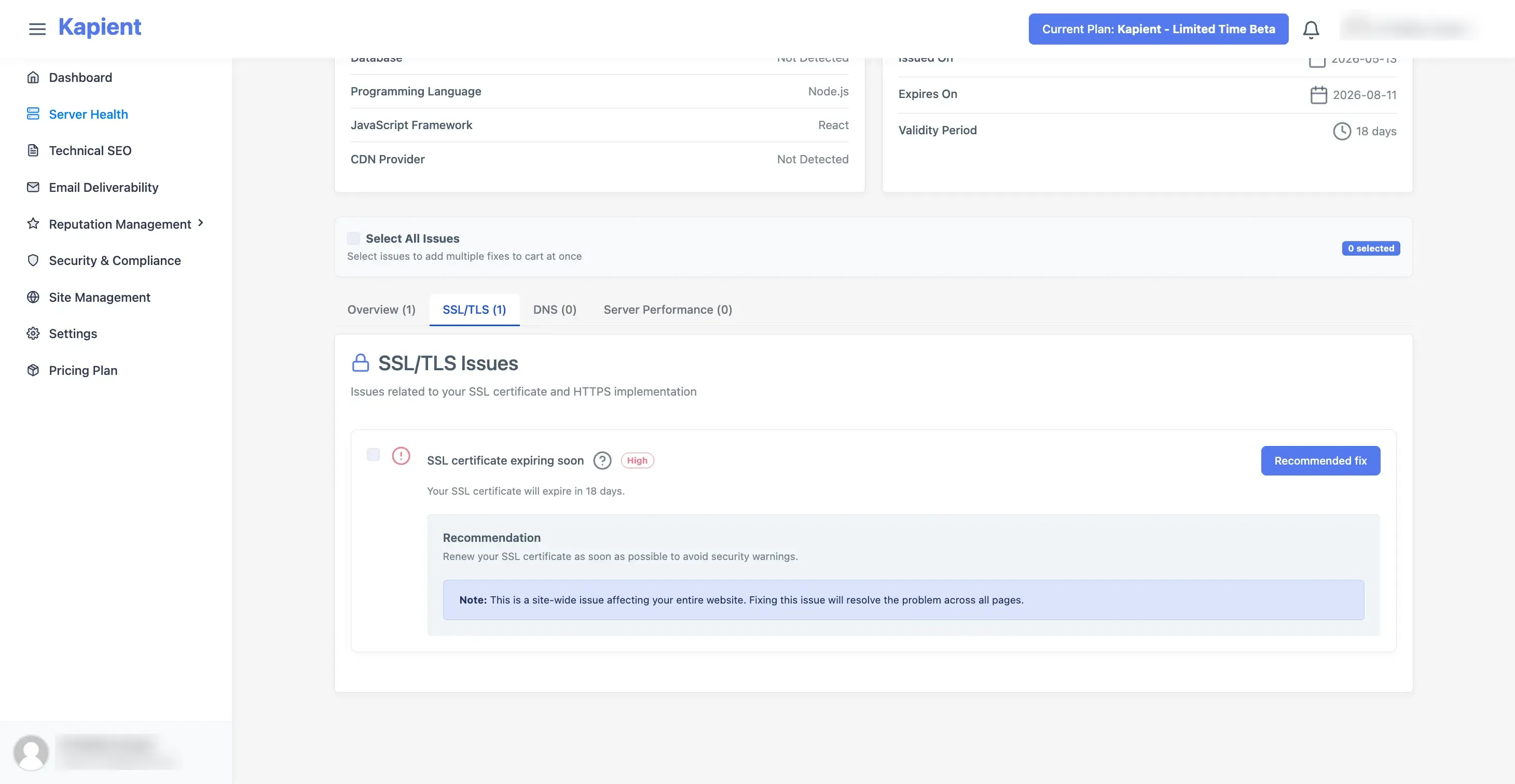
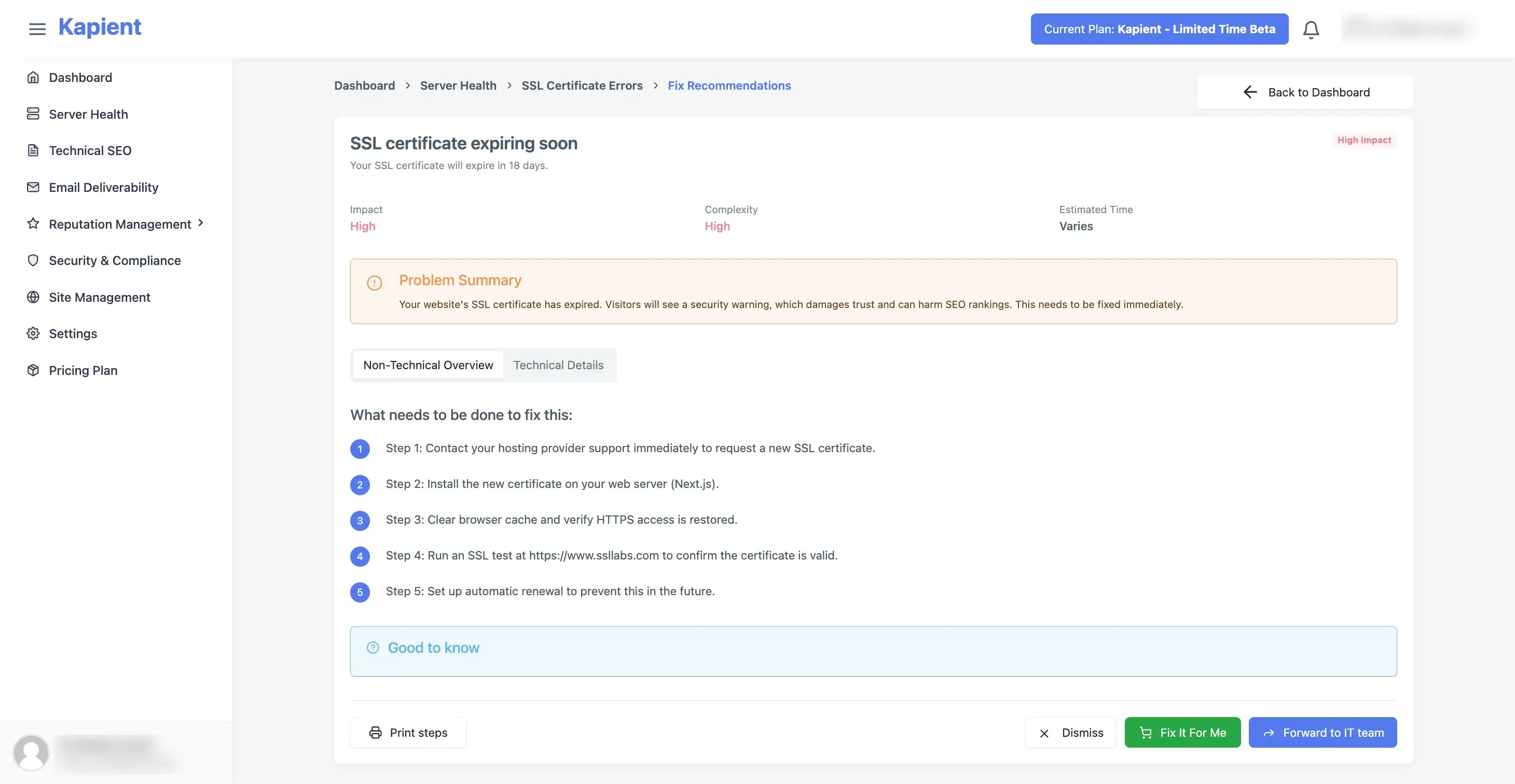
In your Kapient dashboard, the flagged issue carries a "Recommended fix" button that reveals plain-English repair steps written for your actual setup, including your host and platform, rather than a generic tutorial you have to translate.
Certificate problems also rarely arrive alone. The same misconfiguration that breaks a renewal often breaks redirects and leaves mixed content behind, which is why scanning HTTPS configuration, redirect chains, and certificate status together catches the whole failure instead of one symptom.
For anyone maintaining client sites, this is the single highest-stakes item on the list. An expired certificate is the most visible way a website can fail, the client will absolutely notice, and it lands squarely on whoever built the site. Catching it days early turns the worst call in the business into a line item on the monthly report. It is also the clearest illustration of why website care plans are worth paying for, and part of what makes managing dozens of client sites possible without checking each one by hand.
The SSL cliff is one stage in a longer pattern of post-launch decay. Our website decay timeline maps the rest, from form deliverability drifting in month one to the security window opening around month five.
An expired certificate takes your whole site offline. Would you know today? Kapient monitors SSL status, redirects, forms, speed, and 70+ other health factors around the clock, emails you before problems reach your visitors, and shows you exactly how to fix each one. Start monitoring your site free and never find out from a customer again.
Frequently Asked Questions
What happens when an SSL certificate expires?
Browsers stop trusting the connection and show every visitor a full-page security warning instead of your website. Forms and checkouts stop working, and if the outage lasts long enough, search engines may drop affected pages from the index. In practical terms the site is offline until the certificate is renewed.
How do I fix an expired SSL certificate?
Renew it where it was issued. On most hosts that means reissuing free SSL from your control panel, which takes minutes. On Cloudflare, check whether the edge or origin certificate lapsed. On your own server, re-run your certificate tool and then find out why its automation stopped. Afterwards, clear your cache and confirm the new expiry date from outside your browser.
Why did my SSL certificate not renew automatically?
Almost always because something quietly broke the automation: a stopped cron job or renewal timer, DNS changes after a migration, a redirect blocking the validation request, or an expired API token. Renewal notices are also frequently sent to an old email address that nobody monitors.
How long does it take to fix an expired SSL certificate?
Usually five to fifteen minutes with host-issued free SSL. Cloudflare origin certificates take a similar time. Paid certificates take longest, occasionally several hours, because domain validation may require DNS changes that need time to propagate.
How often do SSL certificates need to be renewed now?
Maximum certificate lifetime dropped to 200 days in March 2026, falls to 100 days in March 2027, and reaches 47 days in March 2029. Free certificates from Let's Encrypt already renew every 90 days. Renewal is becoming frequent enough that automation plus monitoring is the only workable approach.
Does an expired SSL certificate hurt SEO?
Yes. Google treats HTTPS as a ranking signal, and a blocking security warning drives visitors away immediately, which damages engagement metrics. If the certificate stays expired long enough for repeated failed crawls, affected pages can be dropped from the index and take time to recover after the fix.
Written by
Khul Anwar
Growth
Khulanwar leads content and growth at Kapient, where the team helps small businesses and agencies keep their websites healthy, fast, and compliant. He writes about website monitoring, technical SEO, and the maintenance work that quietly keeps sites from breaking after launch.
Related articles
SEO Metrics: The 15 That Actually Matter in 2026 (and the Ones to Ignore)
August 21, 2026

Website Migration Checklist: The Complete Guide to Migrating Without Losing Traffic
August 19, 2026

How to Remove Hacked Spam Pages That a Hacker Indexed on Your Domain
August 11, 2026
How to Fix a WordPress Contact Form Not Sending Emails
July 23, 2026