How to Fix a WordPress Contact Form Not Sending Emails
Your form looks fine. Visitors see the success message. And the emails never arrive. This is the most common silent failure in WordPress, and the frustrating part is that nothing appears broken from either side: the visitor thinks they contacted you, and you think nobody did. Here is how to diagnose it properly, fix it for good, and make sure you find out immediately if it ever breaks again.

Khul Anwar
Growth
TL;DR: When a WordPress contact form stops sending emails, the cause is almost always email delivery, not the form itself. WordPress sends mail through PHP with no authentication, so hosts and inboxes silently reject it. The fix: install an SMTP plugin, connect it to an authenticated email service, verify your domain's SPF and DKIM records, and send a test. Then check your form plugin's notification settings and confirm the sending address uses your own domain.
Your form looks fine. Visitors see the success message. And the emails never arrive. This is the most common silent failure in WordPress, and the frustrating part is that nothing appears broken from either side: the visitor thinks they contacted you, and you think nobody did. Here is how to diagnose it properly, fix it for good, and make sure you find out immediately if it ever breaks again.
Why WordPress Forms Fail Silently
Understanding the cause makes every fix below make sense. When someone submits your form, WordPress sends the notification using its built-in wp_mail() function, which relies on your web server's PHP mail. That email leaves your server with no authentication: no proof it is really from your domain.
Mail providers treat unauthenticated mail as suspect. Depending on the day, your notification lands in spam, gets silently discarded, or is rejected before delivery. Nothing errors on your site, because from WordPress's perspective the mail was handed off successfully. The failure happens downstream, invisibly.
This is why the problem appears out of nowhere on a form that "worked for years." Your host's server IP got flagged, or Gmail tightened its filtering, and your unauthenticated mail stopped making the cut.
It is also why the fix is not inside your form plugin. Contact Form 7, WPForms, Gravity Forms, Elementor forms: all of them hand delivery to the same wp_mail() pipeline, so all of them fail the same way.
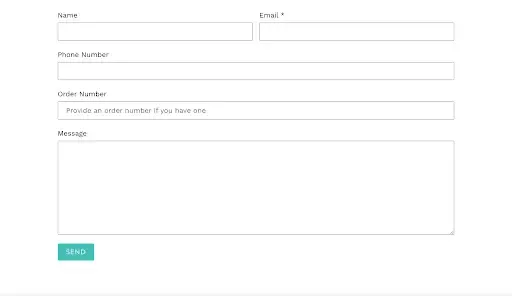
The form works. The delivery pipeline behind it is what fails.
Step 1: Confirm It Is Really a Delivery Problem
Two minutes of diagnosis saves an hour of guessing.
- Submit a test through your own form with an email address you control
- Check the spam folder of the receiving inbox, including Gmail's Promotions and Updates tabs
- Install a mail logging plugin (WP Mail SMTP includes one, or use a dedicated logger). Submit again and check the log
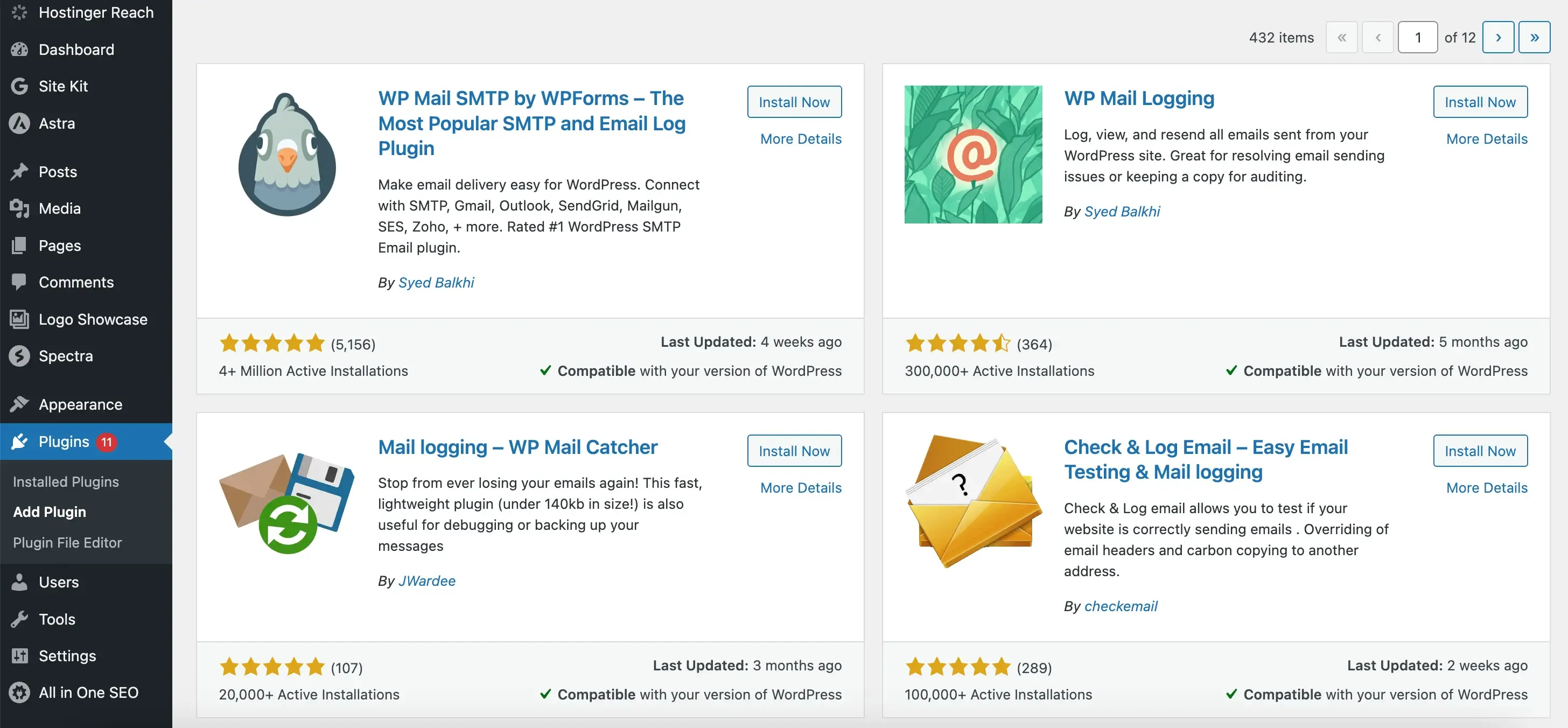
The log tells you which of two problems you have. If the submission appears in the log, WordPress is sending and the mail is being lost in delivery: continue to Step 2. If nothing appears in the log, WordPress never attempted to send, which means a form plugin configuration issue: skip to Step 4.
Step 2: Install SMTP and Authenticate Your Email
This is the fix that solves the majority of cases. SMTP replaces WordPress's anonymous PHP mail with an authenticated connection through a real mail service, so receiving servers can verify the mail is legitimate.
- Install an SMTP plugin. WP Mail SMTP is the most widely used; FluentSMTP and Post SMTP work the same way
- Connect it to a mail service. Options in rough order of robustness:
- A transactional email service (Brevo, SendGrid, Mailgun, Amazon SES): free tiers cover a small business site's volume comfortably, and deliverability is what these services exist for
- Google Workspace or Microsoft 365, if the business already pays for it
- Your host's SMTP server: better than PHP mail, weakest of the three
- Send the plugin's built-in test email and confirm it arrives in a normal inbox
Fix Your Domain's DNS Records
Authentication only works fully when your domain says the sender is allowed.
Three DNS records matter:
- SPF lists which servers may send mail for your domain
- DKIM cryptographically signs each message
- DMARC tells receivers what to do when the first two fail.
Your mail service's setup guide gives you the exact records to add at your DNS host, and Google's sender guidelines now effectively require SPF and DKIM for reliable delivery to Gmail, which is reason enough on its own.
Step 3: Fix the From Address
A classic self-sabotage: setting the form's "From" field to the visitor's email address. The mail then claims to be from visitor@gmail.com but is sent by your server, which fails Gmail's own authentication rules and gets rejected.
Set it up like this:
- From: an address on your own domain, like forms@yourbusiness.com
- Reply-To: the visitor's email address, so hitting reply still goes to them
Every major form plugin supports this split. It costs nothing and fixes a surprising share of "form stopped working" reports on its own.
Step 4: Check the Form Plugin Itself
If the mail log showed no sending attempt, the problem is upstream of delivery:
- Notification settings. Confirm the notification email is enabled and pointed at the right address. Plugin updates occasionally reset these
- Conditional logic. A misconfigured condition can suppress the notification for every submission
- Plugin conflicts. Deactivate recently added plugins one at a time and retest. Caching and security plugins are the usual suspects, and aggressive caching can even serve a cached success page without processing the submission
- Spam filtering. If your form has CAPTCHA or honeypot protection, check the plugin's spam or entries folder. Overzealous filtering quietly eats legitimate submissions
Step 5: Test Like a Visitor, Not an Admin
After fixing, log out of WordPress, open the site in a private window, and submit the form as a stranger would, ideally from a different email provider than the receiving inbox. Confirm three things: the success message shows, the notification arrives in the inbox (not spam), and the reply-to points at your test address. On sites with multiple forms, test each one, because notification settings are per-form.
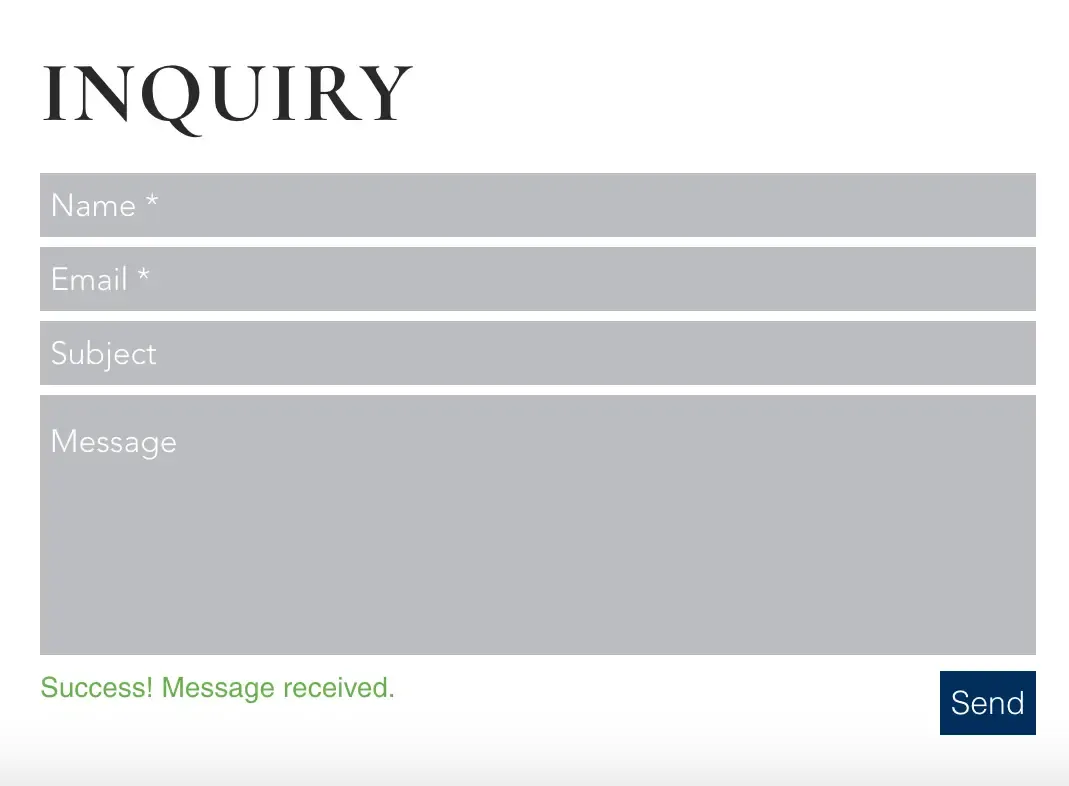
The goal state: authenticated mail, landing in the inbox, every time.
The Fix Has a Shelf Life
Here is the uncomfortable truth about everything above: it fixes the form today. It does not keep the form fixed.
Delivery breaks again for reasons that have nothing to do with you. Your SMTP service's API key expires. A plugin update resets notification settings. The client's IT person edits DNS and drops the SPF record. A new security plugin starts intercepting submissions.
Each of these failures is exactly as silent as the original problem, and manual testing only catches them if someone happens to test on the right day. For a business that gets its leads through that form, every silent week is real money. If you maintain client sites, it is worse: the client assumes you would know, and technically you have no way to.
This is precisely the failure mode Kapient exists for. It monitors your website continuously, including whether forms are actually delivering, as part of its scan across more than 74 technical and quality factors. The moment delivery breaks, you get an email alert, on the day it broke rather than the month the client asks why leads dried up.
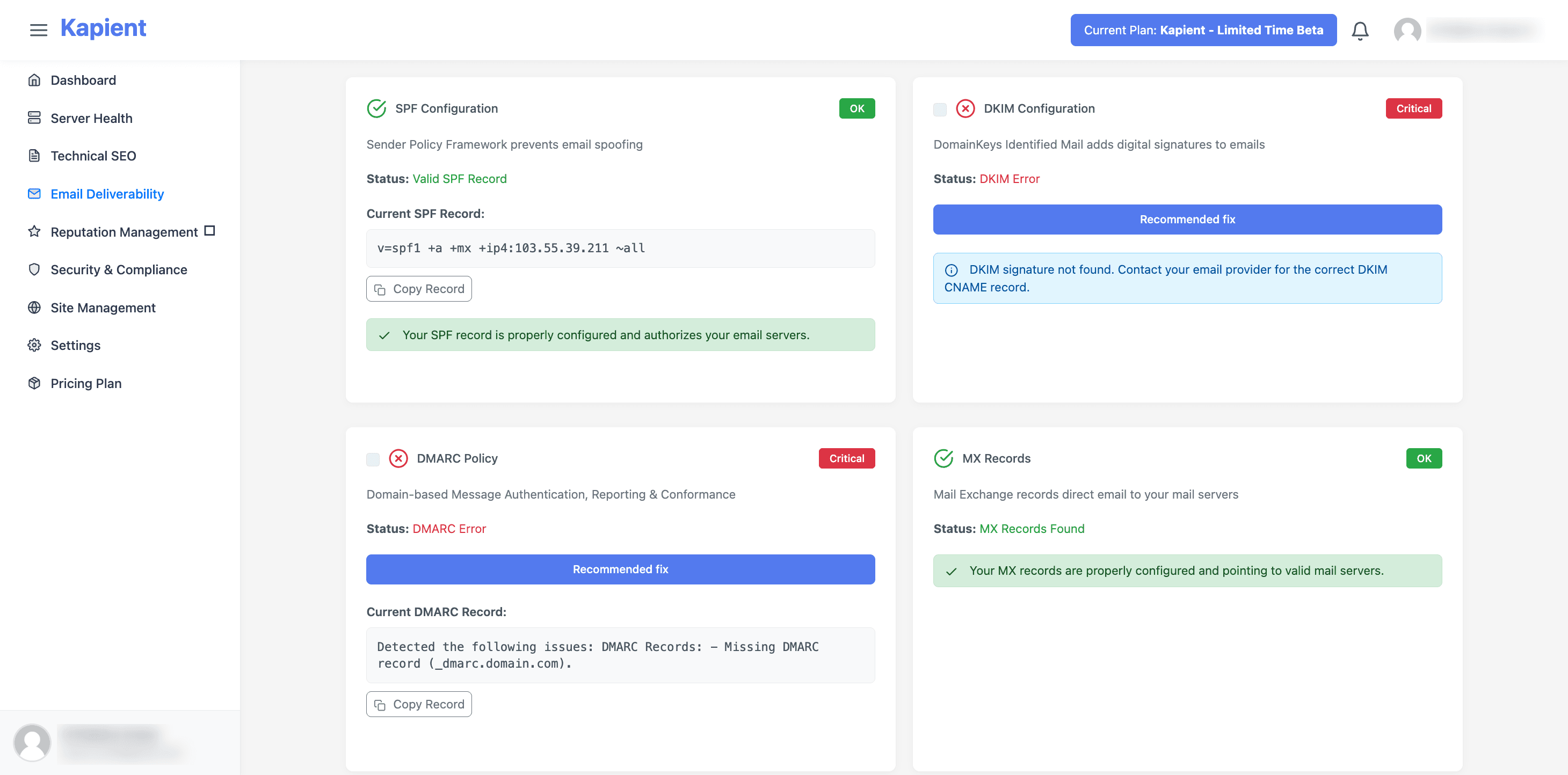
Then in your Kapient dashboard, the flagged issue has a "Recommended fix" button, and clicking it reveals plain-English repair steps generated for your actual setup, because Kapient reads your stack: hosting, CMS, plugins, and server configuration. Not a generic help article, but the fix for this site.
For freelancers and designers running care plans, this turns the worst kind of client emergency into a routine line in the monthly report: form delivery failed on the 12th, detected same day, fixed within hours. That sentence justifies a retainer better than any list of tasks performed.
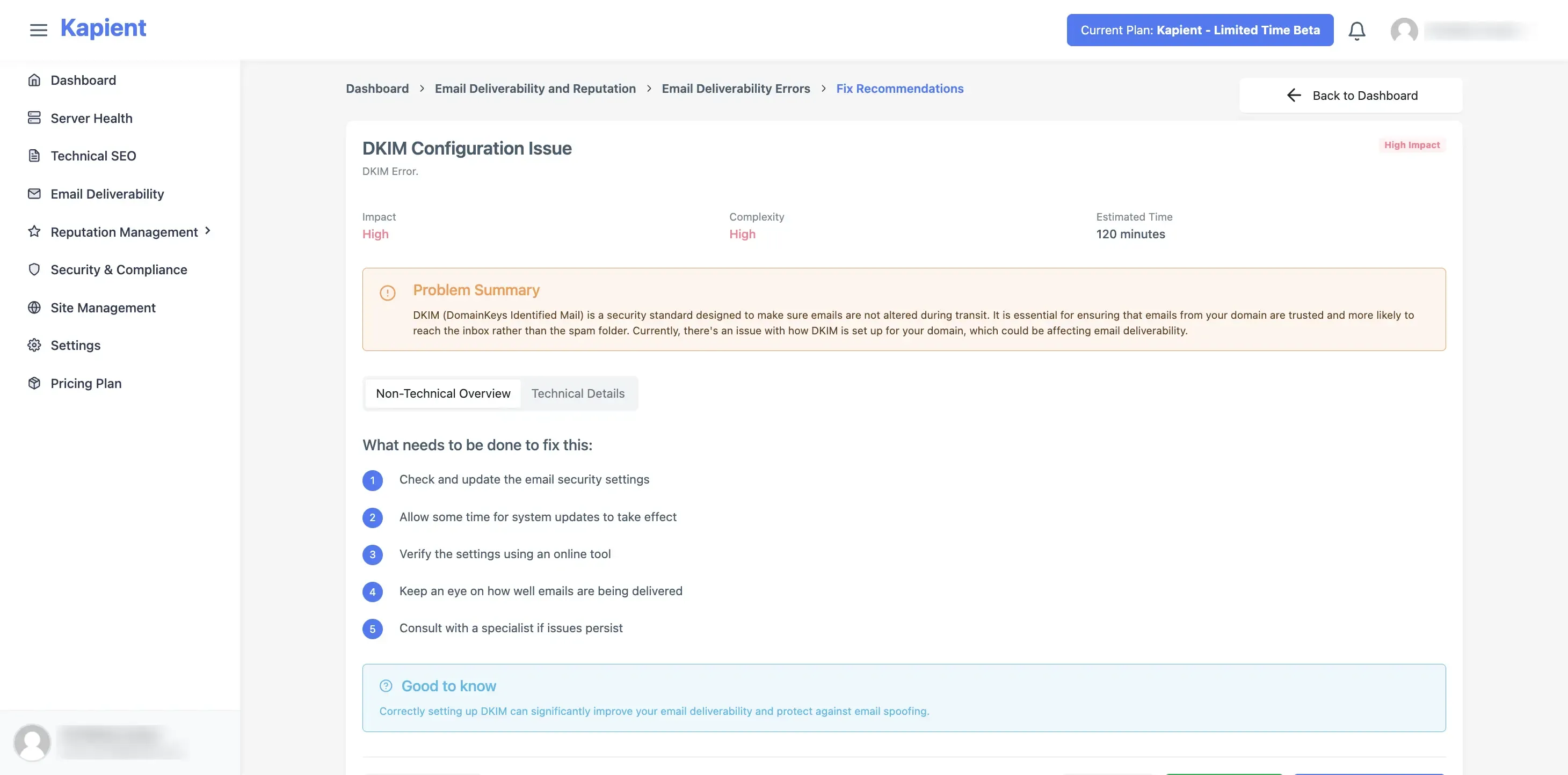
Kapient catches the failure the day it happens. One click on Recommended fix shows the repair steps for your specific stack.
How long would a broken form go unnoticed on your site? Kapient monitors form delivery and 74+ other health factors around the clock, emails you the moment something breaks, and shows you exactly how to fix it. Start scan your website and never lose a silent week of leads again.
Frequently Asked Questions
Why is my WordPress contact form not sending emails?
Almost always because WordPress sends mail through unauthenticated PHP mail, which spam filters reject or discard. The standard fix is an SMTP plugin connected to an authenticated mail service, plus SPF and DKIM records on your domain.
Do I need an SMTP plugin for WordPress forms?
For reliable delivery, yes. PHP mail worked when spam filtering was lax, but modern providers like Gmail effectively require authenticated mail. SMTP through a real mail service is the difference between sometimes delivered and always delivered.
Why do form emails go to spam?
Missing authentication (SPF and DKIM records), a From address that does not match the sending domain, or a shared server IP with a poor reputation. Authenticated SMTP with correct DNS records resolves all three.
My form shows a success message but no email arrives. Why?
The success message only confirms WordPress accepted the submission. Delivery happens afterward and fails silently. Install a mail logging plugin: if the log shows the send, fix delivery with SMTP; if not, check your form plugin's notification settings.
Which contact form plugin has the best email delivery?
None of them differ meaningfully, because they all send through the same WordPress mail pipeline. Delivery quality comes from your SMTP setup and DNS records, not the form plugin. Choose the form plugin for features and fix delivery separately.
How often should I test my contact forms?
Monthly at minimum for any form that produces leads, and after every plugin or DNS change. Since failures are silent and can start any day, continuous automated monitoring is the only approach that catches a break on the day it happens rather than weeks later.
Written by
Khul Anwar
Growth
Khulanwar leads content and growth at Kapient, where the team helps small businesses and agencies keep their websites healthy, fast, and compliant. He writes about website monitoring, technical SEO, and the maintenance work that quietly keeps sites from breaking after launch.
Related articles
SEO Metrics: The 15 That Actually Matter in 2026 (and the Ones to Ignore)
August 21, 2026

Website Migration Checklist: The Complete Guide to Migrating Without Losing Traffic
August 19, 2026

How to Remove Hacked Spam Pages That a Hacker Indexed on Your Domain
August 11, 2026

SSL Certificate Expired: How to Fix It and Stop It Happening Again
July 24, 2026