How to Fix Broken Links in WordPress (Step by Step, No Coding Needed)
To fix broken links in WordPress, first find where the dead URL appears by searching Posts, pages, menus, and widgets. Then pick one of three fixes: update the link if the page moved, set a 301 redirect if other pages or external sites still point to the old URL, or remove the link if the destination is gone for good. Clear your cache and verify in an incognito window.

Khul Anwar
Growth

TL;DR: To fix broken links in WordPress, first find where the dead URL appears by searching Posts, pages, menus, and widgets. Then pick one of three fixes: update the link if the page moved, set a 301 redirect if other pages or external sites still point to the old URL, or remove the link if the destination is gone for good. Clear your cache and verify in an incognito window. The harder part is finding broken links in the first place, since most stay invisible until a customer complains or your traffic drops. Link checker plugins that crawl from inside your site slow WordPress down and are banned by many hosts, so external continuous monitoring is the reliable way to catch link rot as it happens.
If you're searching for how to fix broken links in WordPress, chances are you just clicked something on your own site and hit a 404 page. Or worse, a customer told you about it first.
Broken links are one of the most common WordPress problems, and one of the most damaging. They frustrate visitors, kill conversions mid-journey, and quietly drain your Google rankings. The good news: fixing them is straightforward once you know where they are. That last part is the real challenge, and it's exactly what this guide covers.
Why Broken Links Happen on WordPress Sites
Broken links rarely appear because someone did something wrong. They usually show up because something changed:
- You changed a permalink or slug. The old URL still exists in menus, buttons, and old blog posts.
- You deleted or unpublished a page. Every internal link pointing to it now returns a 404.
- A plugin or theme update rewrote URLs. Common after switching page builders or restructuring categories.
- An external site you linked to shut down or moved. You did nothing, but your link is now dead.
- A typo in a URL. One missing character is all it takes.
On a small site, this happens a few times a year. On an active site with a blog, new products, and regular updates, it happens constantly.
Why Broken Links Hurt More Than You Think
A broken link is not just a cosmetic issue:
- Visitors leave. A 404 page in the middle of a buying journey is often the end of that journey.
- Google notices. Crawl errors waste your crawl budget and signal a poorly maintained site. Broken internal links also break the flow of link equity between your pages.
- Trust erodes. If your links don't work, customers start wondering what else on your site doesn't work.
Sites competing for the top search results cannot afford this. The top 3 Google results capture more than half of all clicks, so every technical signal counts.
How to Fix Broken Links in WordPress: The Manual Way
If you already know which link is broken, here's how to repair it depending on the cause.
Step 1: Find the broken link's location
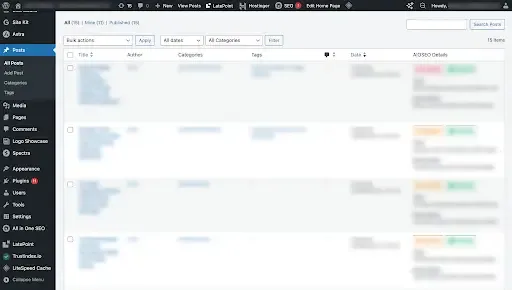
Search your WordPress admin for the dead URL. Go to Posts > All Posts and use the search bar, or use a database search plugin to find every instance of the URL across posts, pages, widgets, and menus.
Step 2: Decide how to fix it
There are three possible fixes, and choosing the right one matters:
- Update the link. If the destination page still exists at a new URL, edit the link to point to the new address. This is the cleanest fix for internal links.
- Set up a 301 redirect. If many pages, or external sites you can't edit, point to the old URL, create a permanent redirect from the old URL to the new one. Most WordPress users do this with a redirect plugin, or through their SEO plugin's redirect module.
- Remove the link. If the destination is gone for good and there's no replacement, unlink the text. A plain sentence is better than a dead end.
Step 3: Fix links in menus and widgets separately
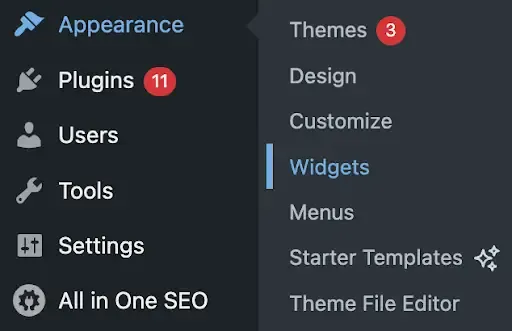
Broken links often hide outside your post content. Check Appearance > Menus and Appearance > Widgets, since these are updated less often and tend to hold outdated URLs the longest.
Step 4: Clear your cache
If you use a caching plugin or a CDN, clear the cache after fixing links. Otherwise visitors may keep seeing the old, broken version of the page.
Step 5: Verify the fix
Open the page in an incognito window and click the repaired link. If you set up a redirect, confirm it lands on the right page and returns a 200 status, not another redirect chain.
The Problem With the Manual Approach
Manual fixing works when you know a link is broken. But that's the catch: most broken links are invisible until someone complains or your traffic dips.
You could run a one-time link checker plugin, but these come with tradeoffs. Link checker plugins that constantly crawl your own site are notorious for slowing down WordPress and hammering your server. That's why many managed WordPress hosts ban them outright. And a one-time scan only tells you what was broken on that day. A link that dies next week stays broken until your next manual check.
What actually solves the problem is external, continuous monitoring that doesn't run on your server at all.
How to Fix Broken Links in WordPress Automatically With Kapient
Kapient is a website monitoring service built for business owners who don't want to think like developers. It scans your site continuously from outside your hosting environment, checking more than 74 technical and quality factors, including broken links and pages. Here's the workflow.
Step 1: Add your website to Kapient
Sign up at kapient.com and enter your website address. There's nothing to install on your WordPress site: no plugin, no code snippet, no load on your server. Kapient scans your site from external checkpoints, the same way a real visitor or Google's crawler experiences it.
- Dashboard \ Site Management
- Name to your website : your website name
- Website Base URL : https://yourwebsite.com
- Click Save to start continuous monitoring
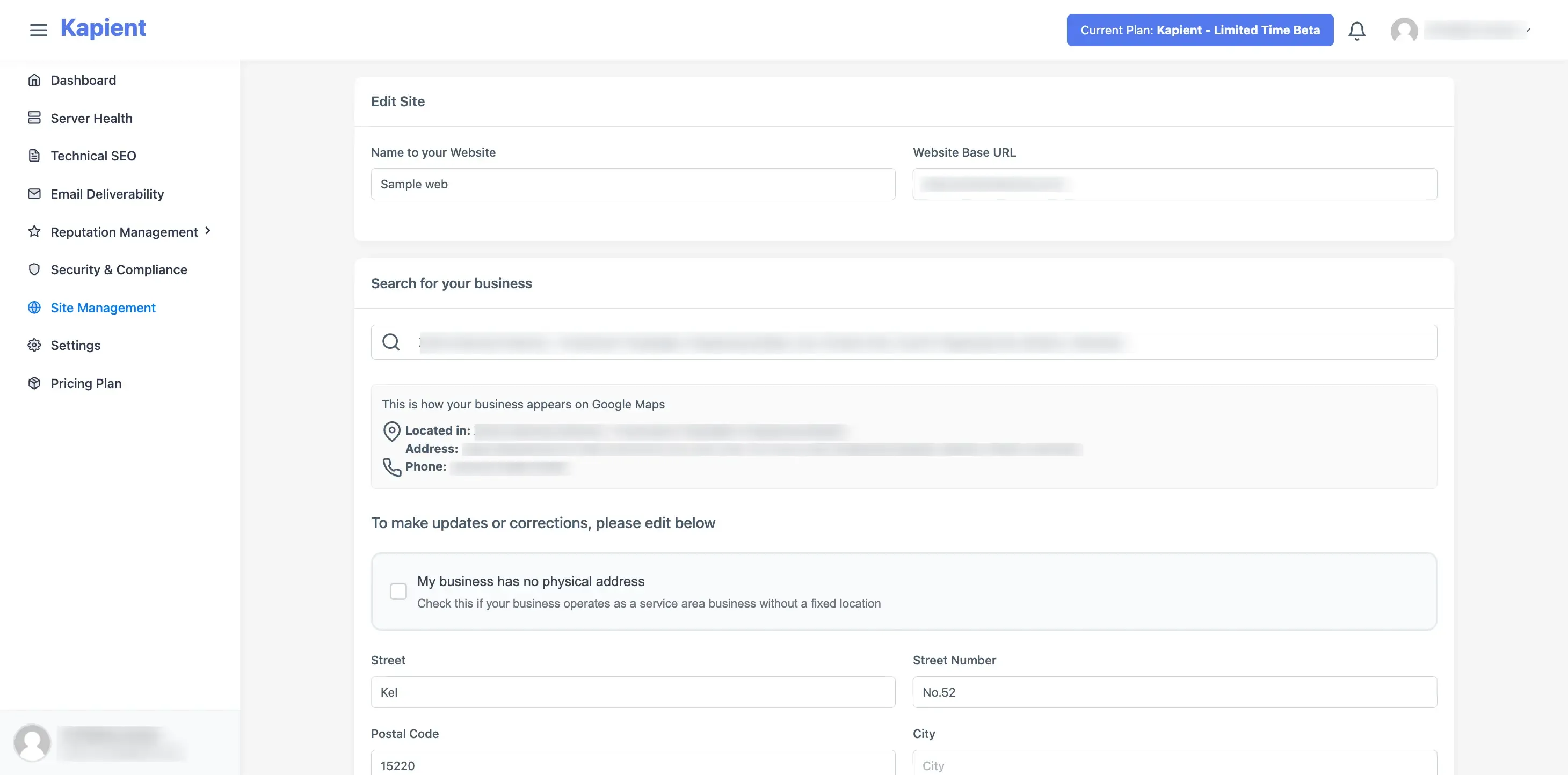
You can also add your Google Business Profile here, so Kapient can monitor your Google Business performance.
Step 2: Let the first scan run
Kapient crawls your site and runs its full battery of checks. Along with broken links, it examines things like redirect and HTTPS configuration, page speed, contact form delivery, SSL certificate status, and technical SEO factors. This matters because broken links often travel with related problems, like redirect chains or misconfigured HTTPS, that a simple link checker never surfaces.
Step 3: Review broken link issues in your dashboard
Open your Kapient dashboard to review the issues it has detected. Instead of a raw log file, you'll get an easy-to-read report showing your site's health, including server health, technical SEO issues, security, and more.
For broken link issues, click View Full Performance Report to see a detailed website performance report, including all detected broken links.
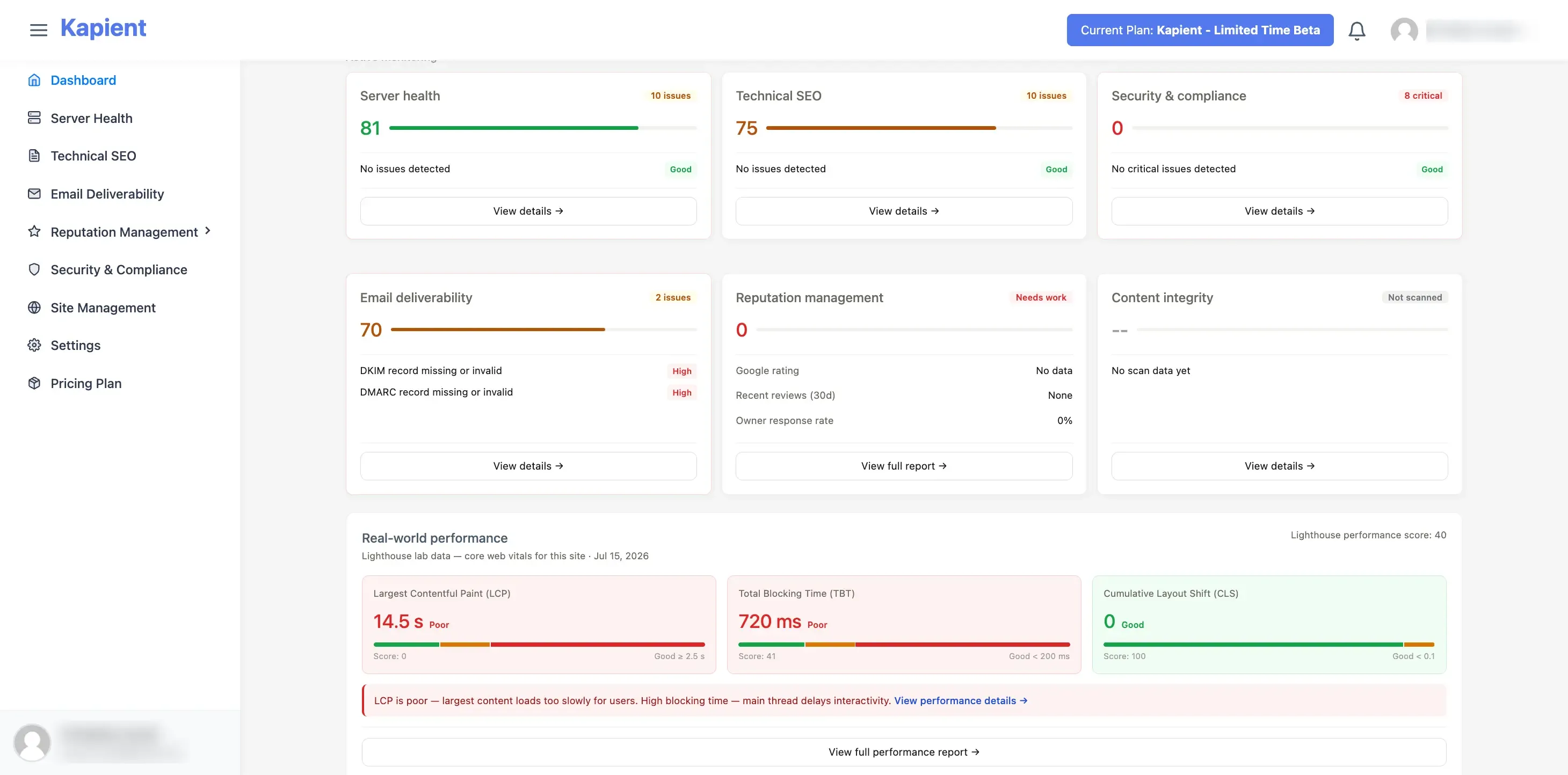
In your issue list, look for the Page Returns an Unsuccessful HTTP Status issue.
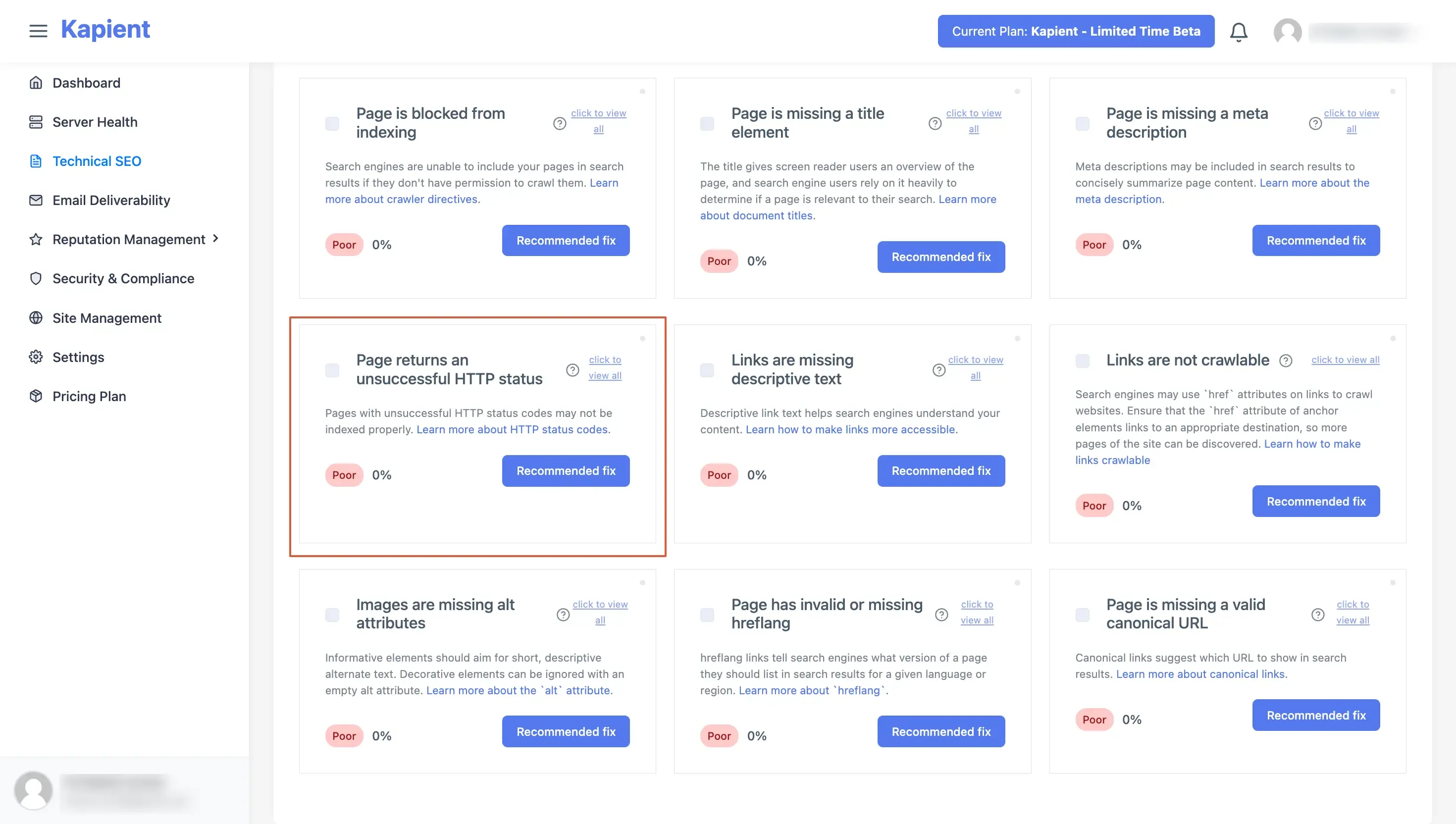
Click Recommended Fix to get AI-powered guidance on how to fix the issue.
Step 4: Follow the plain-English fix instructions
This is where Kapient differs from typical monitoring tools that send an alert and leave you on your own. Each detected issue comes with detailed, easy-to-follow instructions for fixing it, written for non-technical site owners.
Step 5: Fix the link in WordPress
Apply the fix using the manual steps covered earlier: edit the link, set the redirect, or remove it. Because Kapient told you the exact location, you skip the hunting entirely.
Step 6: Let continuous monitoring confirm the fix and catch the next one
Kapient keeps scanning your site at regular intervals, 24/7. When your fix goes live, the issue clears from your dashboard. And when the next link breaks, next week or next month, you get an alert before your customers or Google's crawler find it. That's the real shift: from reacting to 404 complaints to fixing links before anyone notices.
Preventing Broken Links Going Forward
A few habits dramatically reduce how often links break in the first place:
- Never change a permalink without setting a redirect. Make this a rule for anyone who edits your site.
- Redirect before you delete. When removing a page, redirect its URL to the closest relevant page first.
- Audit menus and footers quarterly. These are the most-clicked and least-updated links on most sites.
- Keep monitoring running continuously. Sites change, plugins update, and external sites disappear. Ongoing scans are the only way to catch link rot as it happens instead of months later.
Frequently Asked Questions
Do broken links affect SEO in WordPress?
Yes. Broken internal links waste crawl budget, interrupt the flow of link equity between pages, and signal poor site maintenance. Broken links also increase bounce rates, which indirectly hurts your rankings.
Should I use a 301 or 302 redirect for a broken link?
Use a 301 (permanent) redirect when the old page is gone for good and you want search engines to transfer ranking signals to the new URL. A 302 (temporary) redirect is only for short-term situations where the original URL will return.
Is there a way to find broken links in WordPress without a plugin?
Yes. External monitoring services like Kapient scan your site from outside your server, so there's nothing to install and no impact on site speed. This also avoids the performance problems that get link checker plugins banned by many WordPress hosts.
How often should I check for broken links?
On any actively updated site, links can break weekly. A continuous monitoring service checks around the clock, which is far more reliable than a monthly manual audit.
Ready to stop finding broken links the hard way? Kapient monitors your WordPress site 24/7, catches broken links and 73 other issue types, and tells you exactly how to fix each one in plain English. Start monitoring your site with Kapient
Written by
Khul Anwar
Growth
Khulanwar leads content and growth at Kapient, where the team helps small businesses and agencies keep their websites healthy, fast, and compliant. He writes about website monitoring, technical SEO, and the maintenance work that quietly keeps sites from breaking after launch.
Related articles
SEO Metrics: The 15 That Actually Matter in 2026 (and the Ones to Ignore)
August 21, 2026

Website Migration Checklist: The Complete Guide to Migrating Without Losing Traffic
August 19, 2026

How to Remove Hacked Spam Pages That a Hacker Indexed on Your Domain
August 11, 2026

SSL Certificate Expired: How to Fix It and Stop It Happening Again
July 24, 2026