Screen Reader
TL;DR: A screen reader is assistive software that converts what is on a screen into speech or braille, so people who are blind or have low vision can use a computer, phone, or website. It reads out text, describes images through their alt text, announces links and buttons, and lets the user navigate by keyboard instead of a mouse. Common screen readers include JAWS and NVDA on Windows, VoiceOver on Apple devices, and TalkBack on Android. A website only works well with a screen reader if it is built accessibly, with proper structure, labels, and text alternatives.
What is a screen reader?
A screen reader is software that interprets the content and structure of a digital interface and presents it to the user as synthesized speech or braille output. It is used mainly by people who are blind or have low vision, and also by some people with cognitive or reading disabilities.
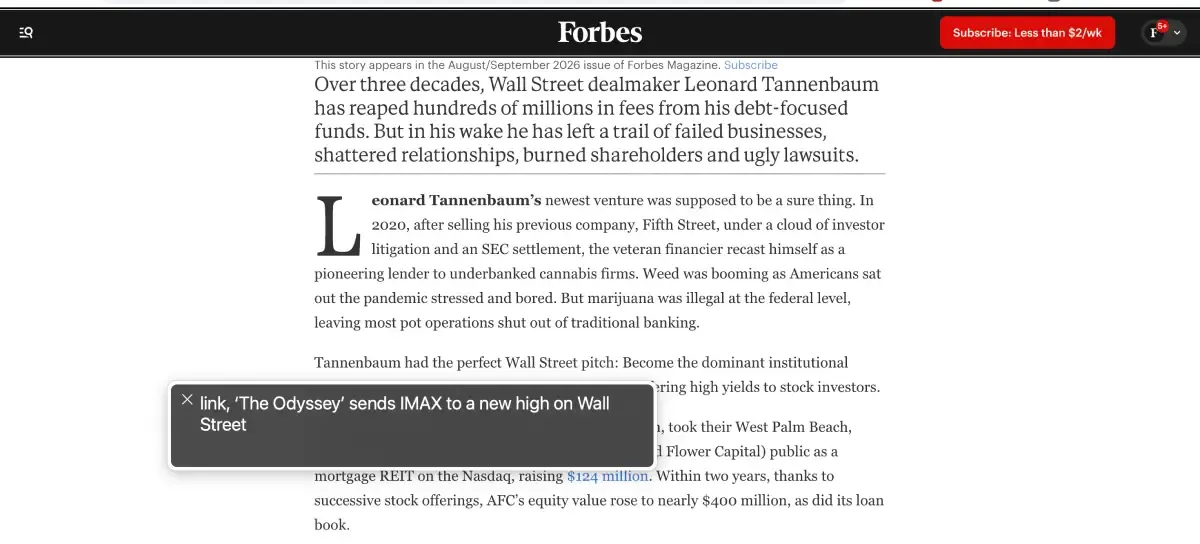
Rather than reading pixels, a screen reader reads the underlying code and the accessibility information a page exposes. It announces headings, paragraphs, links, buttons, form fields, and the alt text on images, and it lets the user move through all of that using the keyboard. The quality of that experience depends entirely on how well the page is built.
How does a screen reader work?
A screen reader is software that sits between the user and the operating system or browser where they perform activities. As the user moves through a page, usually using the keyboard, the screen reader announces each element and identifies what type of element it is. So the person hears not just “Submit,” but “Submit, button,” which tells them what they can do with it.
Because a screen reader user cannot scan a page visually, they rely on structure to move efficiently. Most screen readers let users jump between headings, pull up a list of all the links, move by landmark regions, or tab through interactive elements. This is why proper heading order, meaningful link text, labeled forms, and alt text on images matter so much: they are the signposts a screen reader user navigates by. Without them, the user is left listening to the whole page in order, with no way to skip ahead.
Common screen readers
There are several widely used screen readers across platforms, and many are free.
| Screen reader | Platform | Cost |
|---|---|---|
| JAWS | Windows | Paid |
| NVDA | Windows | Free (open source) |
| VoiceOver | macOS, iOS | Free (built in) |
| TalkBack | Android | Free (built in) |
| Narrator | Windows | Free (built in) |
| Orca | Linux | Free (open source) |
The takeaway is that screen readers are widely available, several at no cost, and built into the devices most people already own. That also means you can test your own site with one without buying anything.
What makes a website work with a screen reader
A site is screen reader friendly when its code communicates clearly with assistive technology. In practice that means:
- Semantic structure, using real headings, lists, and landmarks so the page can be navigated by section.
- Text alternatives on images, so a screen reader can describe them instead of skipping or reading a file name.
- Labeled form fields, so each input announces what it is for.
- Meaningful link and button text, so "Read more" becomes something that makes sense out of context.
- Valid, robust markup, so assistive technology can interpret the page reliably.
These are the same things the WCAG standard requires, which is why building to WCAG is what makes a site usable with a screen reader in the first place.
Why screen reader accessibility slips over time
Here is the part that makes this an ongoing concern rather than a one-time fix. The things a screen reader depends on are exactly the things that break with routine site changes. A new image is published without alt text, so the screen reader has nothing to announce. A redesigned form loses its labels, so fields read as unlabeled. A template change scrambles the heading order, so the page's structure stops making sense.
That is the shelf-life problem. A site can be perfectly navigable with a screen reader today and confusing tomorrow, because each edit is a chance to remove one of those signposts, and none of it is visible to a sighted person making the change. Keeping a site usable with a screen reader depends on continuously checking that those prerequisites stay in place, which is what ongoing web accessibility monitoring does.
Frequently asked questions
What is a screen reader? A screen reader is assistive software that converts on-screen content into speech or braille, so people who are blind or have low vision can use a computer, phone, or website. It reads text aloud, describes images through their alt text, announces links and buttons, and lets the user navigate by keyboard instead of a mouse.
How does a screen reader work? A screen reader reads the underlying code and accessibility information of a page, not the pixels, and announces each element along with its type, such as "Submit, button." The user navigates with the keyboard, often jumping between headings, links, or form fields. How well it works depends on how accessibly the page is built.
What are examples of screen readers? The most widely used are JAWS and NVDA on Windows, VoiceOver on macOS and iOS, and TalkBack on Android. Windows also includes Narrator, and Linux has Orca. Several of these, including NVDA, VoiceOver, and TalkBack, are free, and most are built into the devices people already use.
Who uses screen readers? Screen readers are used mainly by people who are blind or have low vision. They are also used by some people with cognitive or reading disabilities, and by developers and testers checking whether a site is accessible. In short, anyone who cannot rely on seeing the screen may depend on one.
Are screen readers free? Many are. NVDA on Windows is free and open source, and VoiceOver, TalkBack, and Narrator are built into Apple, Android, and Windows devices at no extra cost. JAWS, a long-established Windows screen reader, is paid. So most people can access a capable screen reader without buying anything.
How do you test a website with a screen reader? Turn on a screen reader already on your device, such as VoiceOver on a Mac or iPhone, or install the free NVDA on Windows, then try to complete key tasks using only the keyboard and what you hear. Check that headings, links, images, and forms all make sense when announced. This manual testing catches issues that automated tools cannot, so it is a core part of any thorough accessibility check.
Related terms
- Assistive Technology
- Keyboard Navigation
- Semantic HTML
- Accessibility Audit
By Kapient team.. Last updated: September 23, 2026.