10 Common WCAG Failures and How to Fix Them
Website accessibility can feel overwhelming, but the reality is encouraging: the same handful of issues account for the overwhelming majority of accessibility failures across the web. Studies of top websites consistently find that a few problems, missing alt text, low contrast, empty links, and missing form labels, make up most of the errors detected.

Khul Anwar
Growth

TL;DR: Most accessibility problems come from a small number of repeat offenders. The most common WCAG failures are missing image alt text, low color contrast, missing form labels, empty links and buttons, poor keyboard access and missing focus indicators, illogical heading structure, vague link text, missing document language, and media without captions. Most are quick to fix once you know what to look for, and most are machine-detectable so they can be caught automatically. The harder part is that they keep coming back every time your content changes, which is why the real fix is checking for them continuously, not once.
Website accessibility can feel overwhelming, but the reality is encouraging: the same handful of issues account for the overwhelming majority of accessibility failures across the web. Studies of top websites consistently find that a few problems, missing alt text, low contrast, empty links, and missing form labels, make up most of the errors detected.
That means you do not need to master the entire WCAG specification to fix most of what is wrong with your site. You need to know the common offenders, and how to fix each one. This guide covers the failures you are most likely to have, why they happen, how to fix them, and how to stop them coming back.
Why the Same Failures Keep Appearing
Before the list, it helps to understand why these specific issues are so common. Almost all of them share two traits: they are introduced by everyday content work rather than by developers, and they are invisible to a sighted person using a mouse.
Someone uploads an image and skips the alt text field. A designer picks a brand color that looks good but fails contrast. A content editor pastes in a "click here" link. None of it looks broken on screen, so nobody notices, and the failure sits there affecting real users who cannot see it is there. This is also why these failures come back after you fix them, because the content work that creates them never stops. Keep that in mind as you read: fixing each one is straightforward, but keeping them fixed is the real challenge.
Each failure below maps to a WCAG 2.1 AA success criterion, the standard covered in our guide to checking WCAG accessibility compliance.
1. Missing Image Alt Text
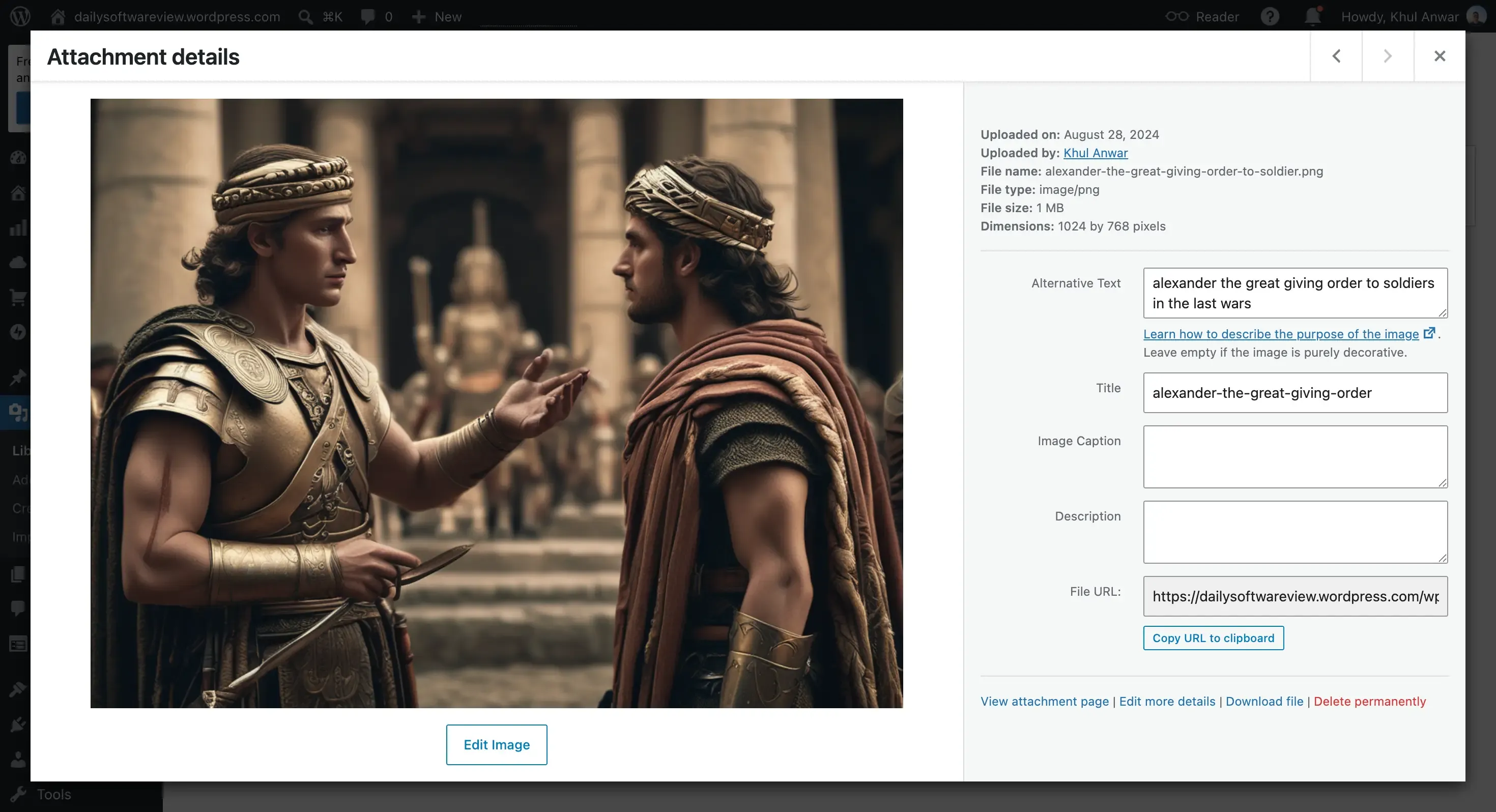
The problem: Images without alternative text are invisible to screen reader users, who hear nothing or just a filename where a meaningful image should be. This is consistently the single most common accessibility failure on the web. (WCAG 1.1.1 Non-text Content.)
How to fix it: Add descriptive alt text to every image that conveys information, describing what the image shows or its purpose, not just naming the object. For purely decorative images, use empty alt text (alt="") so screen readers skip them. Most content systems, including WordPress, have an alt text field right in the media library, so the fix is usually a matter of habit, not code.
2. Low Color Contrast
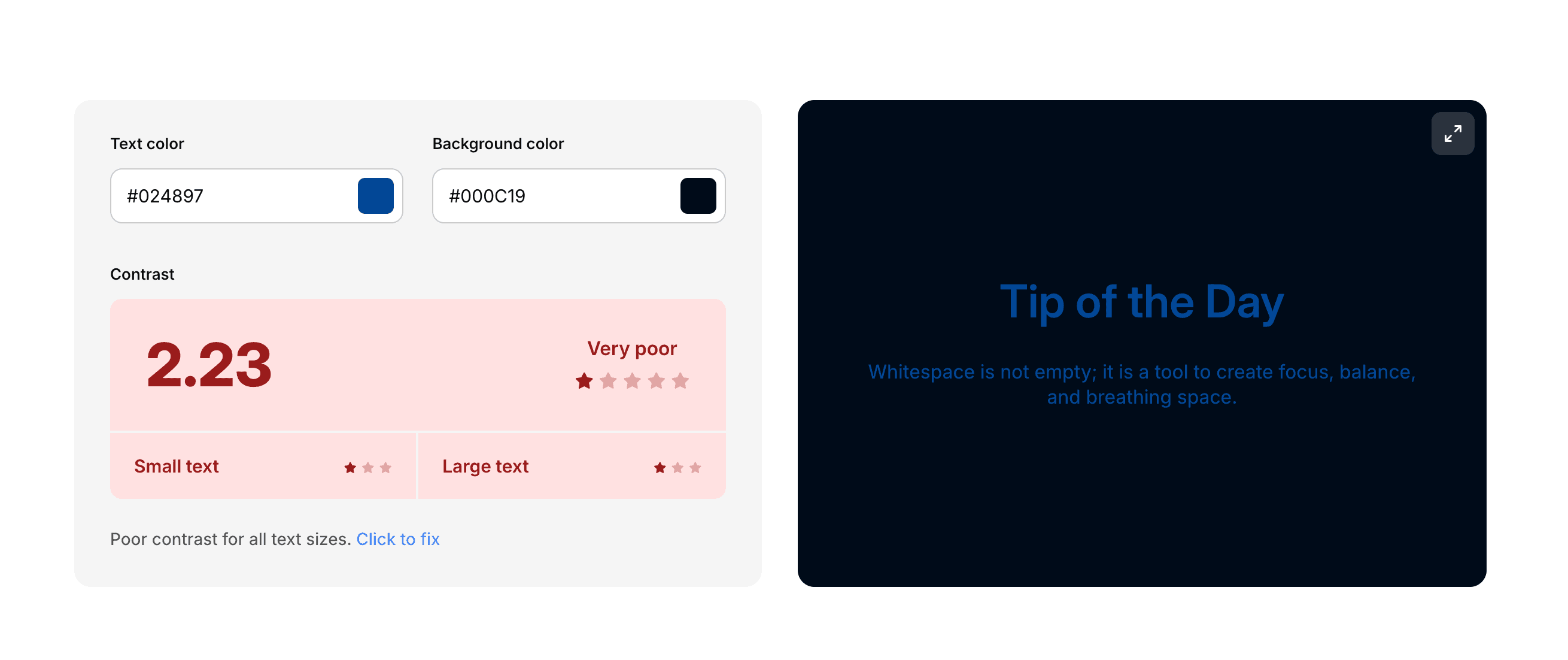
The problem: Text that does not stand out enough from its background is hard or impossible to read for people with low vision or color blindness. Light grey text on white is the classic offender. (WCAG 1.4.3 Contrast Minimum.)
How to fix it: Ensure normal text has a contrast ratio of at least 4.5 to 1 against its background, and large text at least 3 to 1. Use a contrast checker (many are free and built into browser dev tools) to test your colors, and adjust your palette where it fails. This is often a theme or design-system fix that resolves the issue site-wide at once.
3. Missing Form Labels
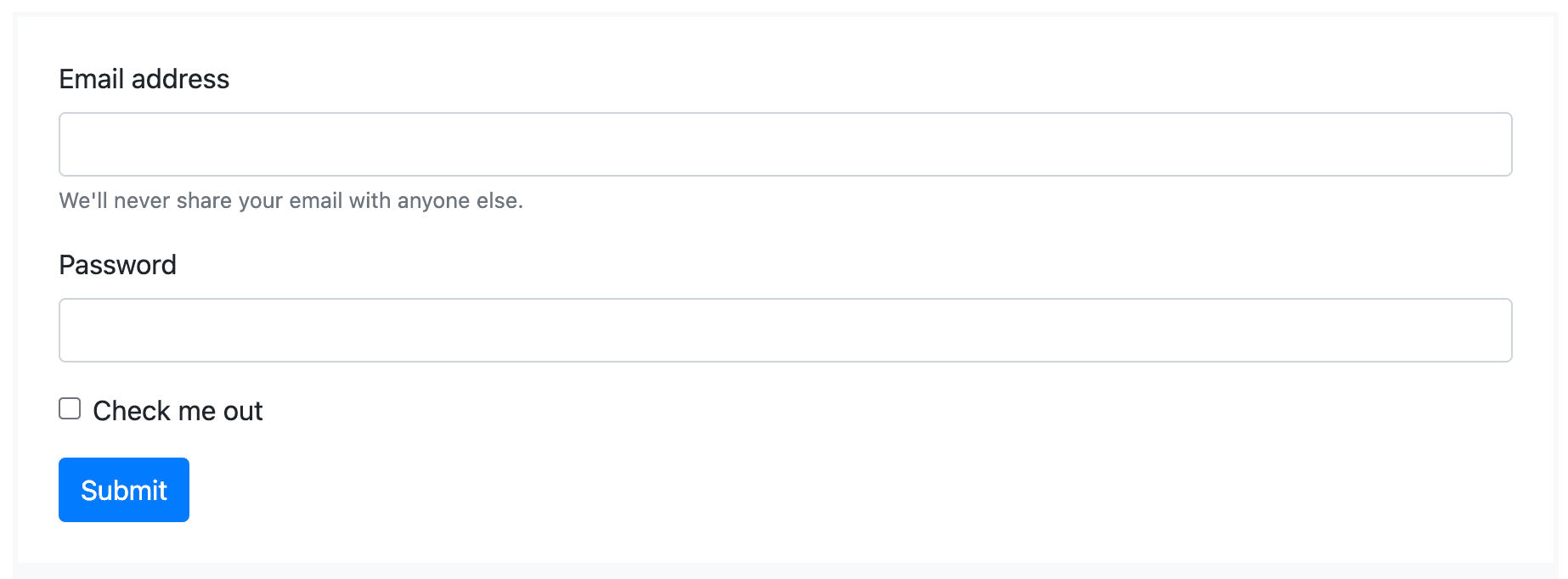
The problem: Form fields without properly associated labels leave screen reader users guessing what to enter. A field that looks obvious visually ("Email") can be a blank mystery to someone who cannot see the placeholder. (WCAG 1.3.1 Info and Relationships, 4.1.2 Name, Role, Value.)
How to fix it: Give every form field a visible label that is programmatically tied to the input (using the label element with a matching for attribute, or an appropriate ARIA label). Do not rely on placeholder text as a substitute for a label, since placeholders disappear on typing and are not reliably announced. This matters most on your highest-value forms: contact, checkout, and signup.
4. Empty Links and Buttons
The problem: Links and buttons with no readable text, common when an icon or image is used with no text alternative, are announced by screen readers as just "link" or "button" with no indication of what they do. (WCAG 2.4.4 Link Purpose, 4.1.2 Name, Role, Value.)
How to fix it: Ensure every link and button has accessible text. For icon-only controls (a search magnifying glass, a hamburger menu, a social icon), add an accessible label with aria-label or visually hidden text that describes the action, like "Search" or "Open menu."
5. Poor Keyboard Access and Missing Focus Indicators
The problem: Many people navigate entirely by keyboard, and cannot use a mouse. If parts of your site cannot be reached or operated with the keyboard, or if there is no visible indicator showing which element is focused, those users are locked out. Custom menus, sliders, and modal pop-ups are frequent culprits. (WCAG 2.1.1 Keyboard, 2.4.7 Focus Visible.)
How to fix it: Make sure every interactive element (links, buttons, form fields, menus) is reachable and operable with the Tab, Enter, and arrow keys, in a logical order. Ensure a clearly visible focus indicator (an outline or highlight) shows where the keyboard focus is at all times, and never remove focus outlines in CSS without replacing them with something visible. Test by putting your mouse aside and tabbing through the whole page.

A visible focus indicator is essential for keyboard users. Removing focus outlines in CSS without a replacement is a common, serious failure.
6. Illogical or Skipped Heading Structure
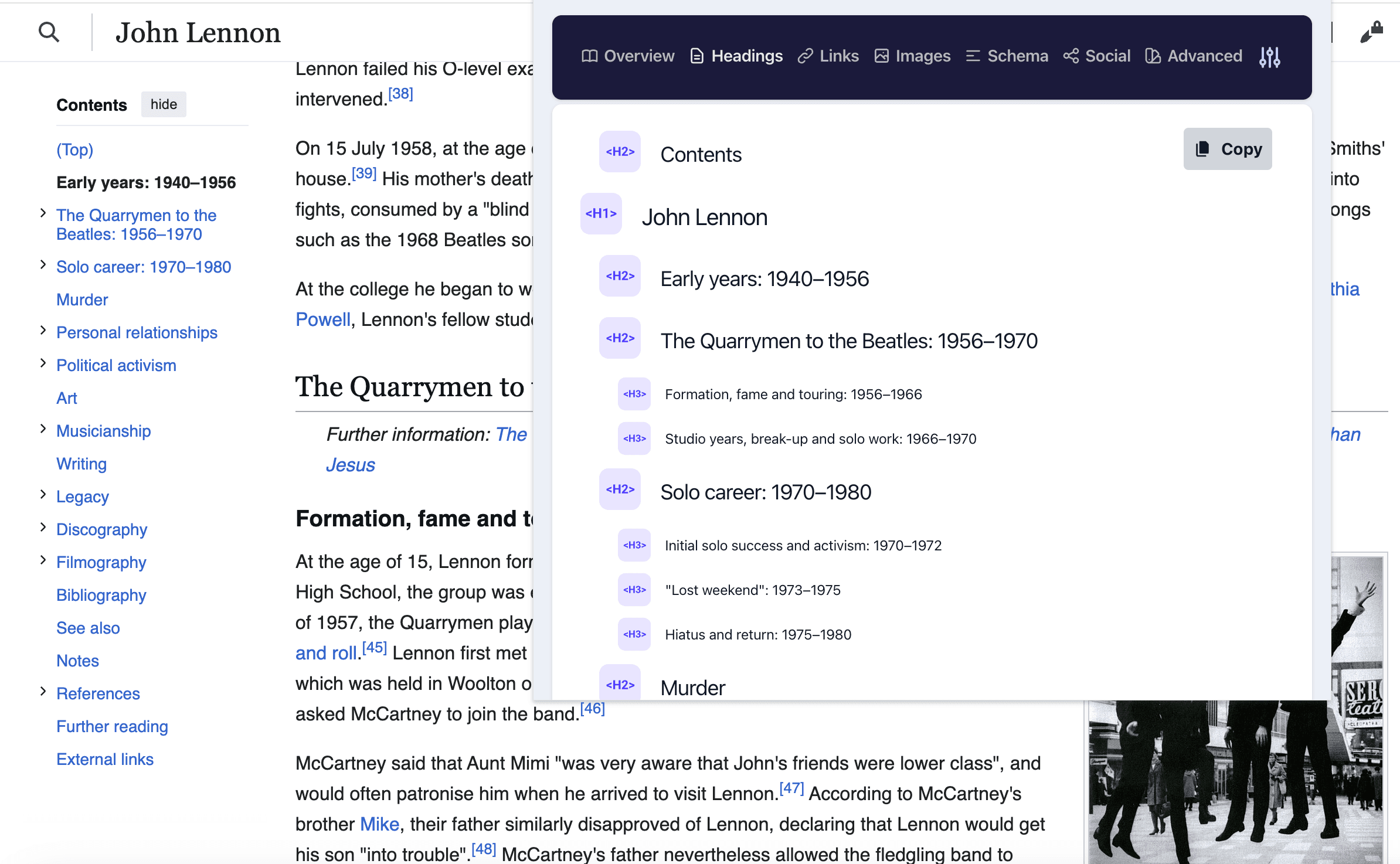
The problem: Screen reader users navigate pages by headings, the way a sighted user scans. If headings are used for visual size rather than structure (jumping from H1 to H4, or using bold text instead of a real heading), that navigation breaks. (WCAG 1.3.1 Info and Relationships.)
How to fix it: Use headings to convey structure, not styling. One H1 per page (usually the title), then H2s for main sections and H3s nested beneath them, in logical order, with no skipped levels. If you want big text that is not a section heading, style it with CSS rather than using a heading tag. Use chrome extension like Detailed SEO extension to check heading structure in the page
7. Vague Link Text
The problem: Links that say "click here," "read more," or "learn more" tell a screen reader user nothing when read out of context, because screen readers can list all links on a page for navigation, and a list of ten "read more" links is useless. (WCAG 2.4.4 Link Purpose.)
How to fix it: Write link text that describes the destination and makes sense on its own, like "download the accessibility checklist" instead of "click here." This helps everyone, and it is good for SEO too, since descriptive anchor text carries meaning for search engines.
8. Missing Document Language
The problem: A page that does not declare its language can be mispronounced by screen readers, which use the language attribute to choose the correct pronunciation rules. English text read with Spanish pronunciation is hard to understand. (WCAG 3.1.1 Language of Page.)
How to fix it: Set the language attribute on your HTML element (for example, lang="en"). This is usually a one-time, site-wide fix in your theme or template, and most modern content systems handle it automatically, but it is worth confirming.
9. Media Without Captions or Transcripts
The problem: Video without captions excludes people who are deaf or hard of hearing, and audio without a transcript does the same. As sites use more video, this failure grows more common. (WCAG 1.2.2 Captions, 1.2.1 Audio-only and Video-only.)
How to fix it: Add captions to videos (auto-generated captions are a start but should be reviewed for accuracy) and provide transcripts for audio content. Most video platforms support caption files, and the effort is modest compared to the reach it adds.
10. Content That Relies on Color Alone
The problem: Using color as the only way to convey information, red text for errors, green for success, colored links with no underline, means colorblind users miss the signal entirely. (WCAG 1.4.1 Use of Color.)
How to fix it: Always pair color with another cue: an icon, text, or underline. Mark form errors with an icon and a text message, not just a red border. Make links distinguishable by more than color, typically an underline.
The Real Challenge: These Failures Keep Coming Back
Notice a pattern in the fixes above: almost all of them are quick, and almost all of them are introduced by routine content work. That combination is exactly why accessibility is so hard to keep on top of. You can fix every issue on this list today, and next week a new blog post goes up without alt text, a theme update breaks your contrast, a new form ships without labels, and a contributor adds three "read more" links. Your site slides back out of compliance, silently, because none of it looks broken to a sighted person clicking around.
This is the same silent-decay pattern that affects every part of a website after launch, covered in our website decay timeline. Accessibility is one of the areas where it does the most quiet harm, because the people affected often cannot use the site to tell you something is wrong.
A one-time fix, or even a professional audit, only addresses the failures present on the day you checked. On a living site, that is not enough. The failures on this list are recurring by nature, so catching them requires checking for them continuously.
How to Catch These Failures Automatically
Here is the good news that makes continuous checking practical: most of the failures on this list are machine-detectable. Missing alt text, low contrast, empty links, missing form labels, missing language, illogical headings, these are exactly the issues an automated scanner can find reliably. (Keyboard access and screen reader usability still need periodic manual testing, but the machine-catchable failures are the most common ones.)
This is where Kapient fits. Under its Security and Compliance dashboard, Kapient runs a WCAG Accessibility check against the WCAG 2.1 AA standard and gives your site an accessibility score, with a compliance breakdown across the four areas where these failures cluster: images (alt text), color contrast, navigation (headings, links, focus), and forms (labels). Because it runs continuously as part of a scan across more than 74 technical and quality factors, a failure introduced by a new post or a theme update shows up in the score right away, instead of accumulating unseen until an audit or a complaint.
When it finds something, the flagged issue in your Kapient dashboard carries a "Recommended fix" button that reveals plain-English steps for correcting it, the same practical fixes covered above, tailored to your site. To be clear about scope, automated monitoring covers the machine-detectable share of WCAG (the most common failures on this list), and does not replace periodic manual keyboard and screen reader testing. But it means the recurring, machine-catchable failures, which are the bulk of the problem, never quietly pile back up between manual reviews.
For a freelancer or agency, continuous accessibility monitoring across client sites is a strong care plan inclusion, precisely because these failures reappear the moment a client starts adding their own content.
Fixing these failures once is easy. Keeping them fixed is the hard part. Kapient continuously scores your site against WCAG 2.1 AA alongside 74+ other health factors, flags common accessibility failures as they appear, and shows you exactly how to fix each one. Start monitoring free and stop accessibility from quietly slipping back.
Frequently Asked Questions
What is the most common WCAG failure?
Missing image alt text is consistently the single most common accessibility failure across the web, followed closely by low color contrast, missing form labels, and empty links. These few issues account for the large majority of all accessibility errors detected on websites, which means fixing them resolves most of the problem.
What are the most common accessibility issues on websites?
The most frequent are missing image alt text, insufficient color contrast, missing or improper form labels, empty links and buttons, poor keyboard access with missing focus indicators, illogical heading structure, vague link text like "click here," missing document language, and media without captions. Most are quick to fix and most are machine-detectable.
Are WCAG failures easy to fix?
Most common ones are, yes. Adding alt text, fixing contrast, labeling form fields, and writing descriptive link text are simple changes that do not require deep technical skill. The harder failures involve keyboard access and complex interactive components. The real difficulty is not the individual fix but keeping failures from reappearing as content changes.
Can an automated tool find all WCAG failures?
No. Automated tools reliably catch the machine-detectable failures, which happen to be the most common ones (alt text, contrast, labels, empty links, language, headings). But some issues, especially keyboard operability and whether the site actually makes sense to a screen reader user, require manual human testing. A complete approach combines automated scanning with periodic manual checks.
Why do WCAG failures keep coming back after I fix them?
Because most failures are introduced by routine content work, publishing posts, updating themes, adding plugins and forms, which never stops. A one-time fix only addresses the failures present that day. New content and code changes reintroduce them silently, which is why continuous monitoring is more effective than a single audit for keeping a site accessible over time.
How do I check my site for these common failures?
Run an automated accessibility scanner (like WAVE, axe, or the accessibility section of PageSpeed Insights) to catch the machine-detectable failures, then do a manual keyboard and screen reader pass for the rest. For ongoing coverage, use continuous monitoring so new failures are caught as they appear rather than only when you remember to run a scan.
Written by
Khul Anwar
Growth
Khulanwar leads content and growth at Kapient, where the team helps small businesses and agencies keep their websites healthy, fast, and compliant. He writes about website monitoring, technical SEO, and the maintenance work that quietly keeps sites from breaking after launch.
Related articles
How to Check if Your Website Meets WCAG Accessibility Standards
September 10, 2026
WordPress Accessibility: How to Make Your Site WCAG Compliant
September 10, 2026

Web Accessibility Monitoring: The Complete Guide
September 4, 2026
Website Accessibility for Agencies: Turning Compliance Into a Service
September 16, 2026