WordPress Accessibility: How to Make Your Site WCAG Compliant
WordPress powers a huge share of the web, and by default a well-built WordPress site can be quite accessible. But "by default" does a lot of work in that sentence, because the moment you add a theme, plugins, page builders, and your own content, accessibility becomes something you have to actively maintain.

Khul Anwar
Growth
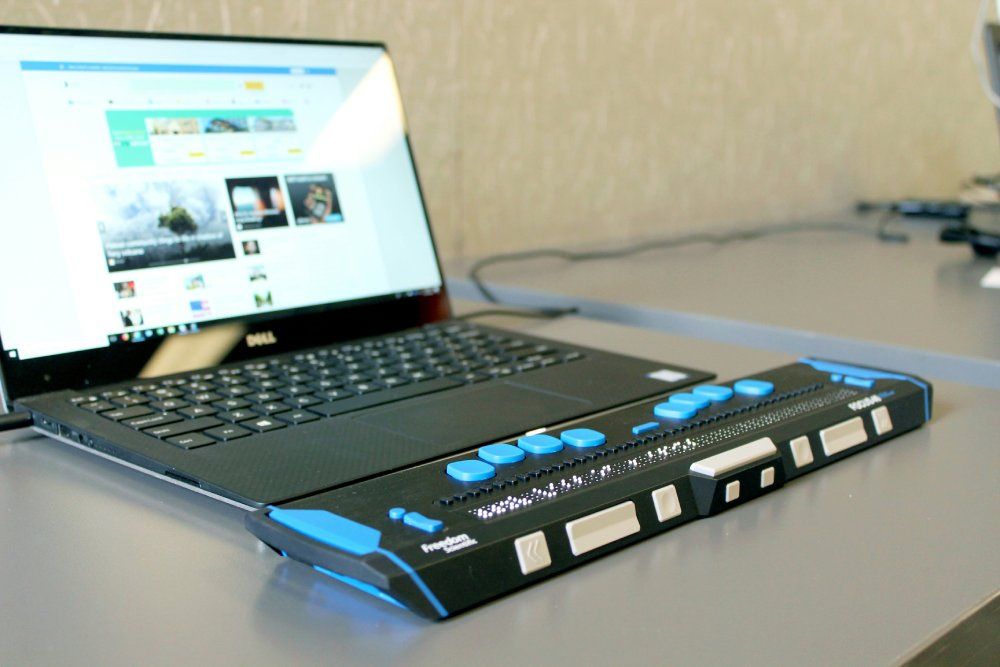
TL;DR: Making a WordPress site accessible means meeting the WCAG 2.1 AA standard, and most of the work comes down to a few things: choosing an accessibility-ready theme, adding alt text to images, ensuring good color contrast, making everything keyboard-navigable, and labeling form fields. Plugins help you find and fix issues but cannot make a site compliant on their own, and accessibility overlay widgets that promise instant compliance do not work and are not a legal defense. The real challenge is that WordPress accessibility breaks again every time you publish a post, update a theme, or add a plugin, so keeping a site compliant means monitoring it continuously, not fixing it once.
WordPress powers a huge share of the web, and by default a well-built WordPress site can be quite accessible. But "by default" does a lot of work in that sentence, because the moment you add a theme, plugins, page builders, and your own content, accessibility becomes something you have to actively maintain.
This guide covers how to make a WordPress site meet WCAG accessibility standards: the theme and plugin choices that help, the manual work no plugin can do, why accessibility overlays are a trap, and the part most guides skip, keeping the site compliant as it changes.
What WordPress Accessibility Actually Means
WordPress accessibility means building and maintaining your site so that people with disabilities, including those using screen readers, keyboard navigation, or other assistive technology, can use it. The technical standard is the Web Content Accessibility Guidelines (WCAG), and the working target for most sites is WCAG 2.1 Level AA.
There is a common point of confusion worth clearing up: WCAG versus ADA. WCAG is the technical standard, the actual checklist of what makes content accessible. The ADA (Americans with Disabilities Act) is the US law that prohibits discrimination against people with disabilities. The ADA does not publish a web checklist of its own, so courts effectively use WCAG 2.1 AA as the benchmark for whether a website meets it.
In short: you make your site accessible by meeting WCAG, and meeting WCAG is what keeps you on the right side of accessibility law. We cover the standard in depth in our guide to checking WCAG accessibility compliance.
WordPress itself takes accessibility seriously, the project has an accessibility team and coding standards, but your specific site's accessibility depends on the choices you make on top of the platform: your theme, your plugins, and above all your content.
Step 1: Choose an Accessibility-Ready Theme
Your theme is the foundation, and it is the single biggest accessibility decision you make. A poorly built theme bakes in problems you then have to fight on every page.
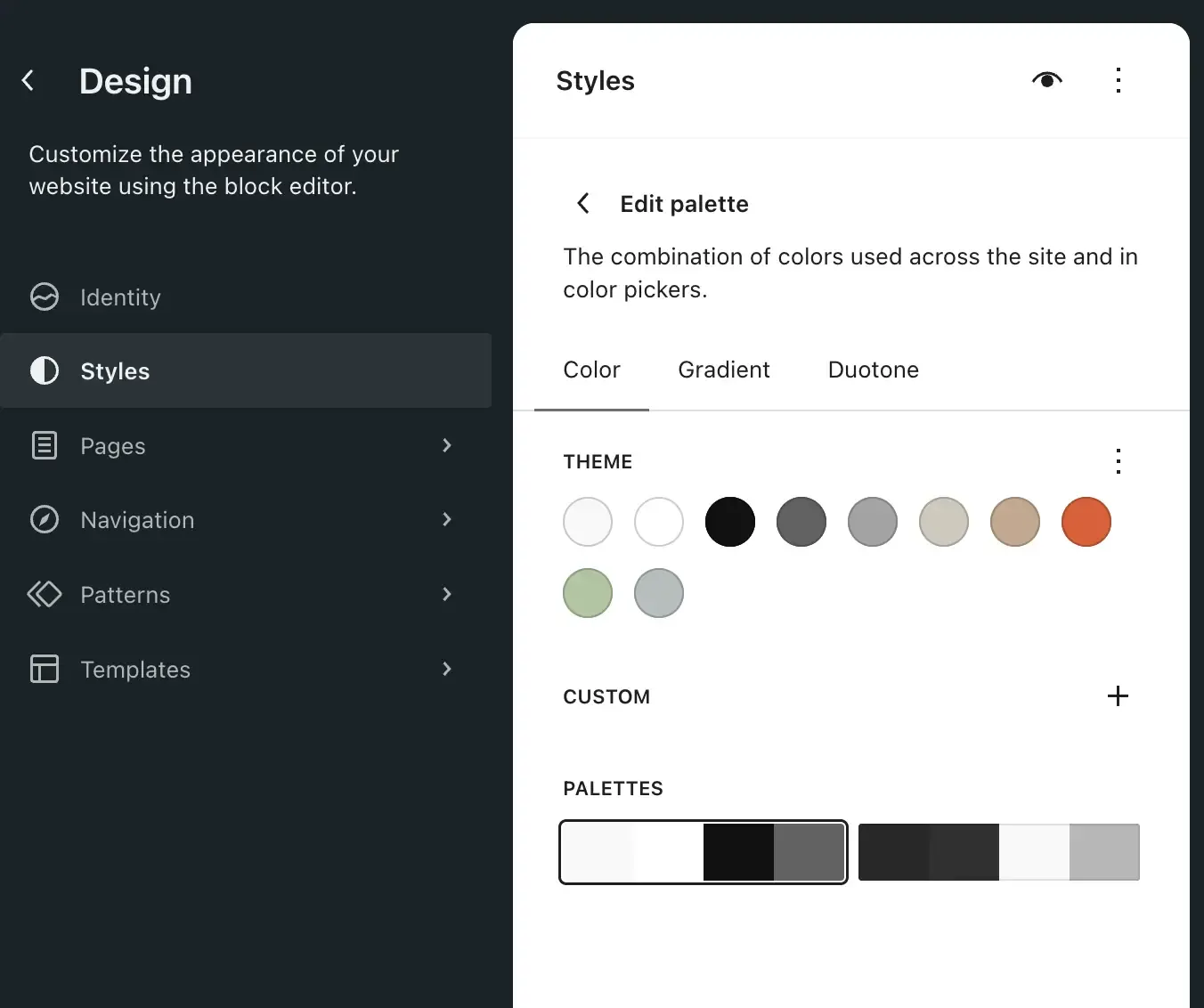
Look for themes tagged "accessibility-ready" in the WordPress theme directory. This tag means the theme has passed a set of accessibility checks: keyboard navigation, sufficient color contrast, visible focus indicators, proper heading structure, and skip links. Starting from an accessibility-ready theme means you inherit good structure instead of retrofitting it.
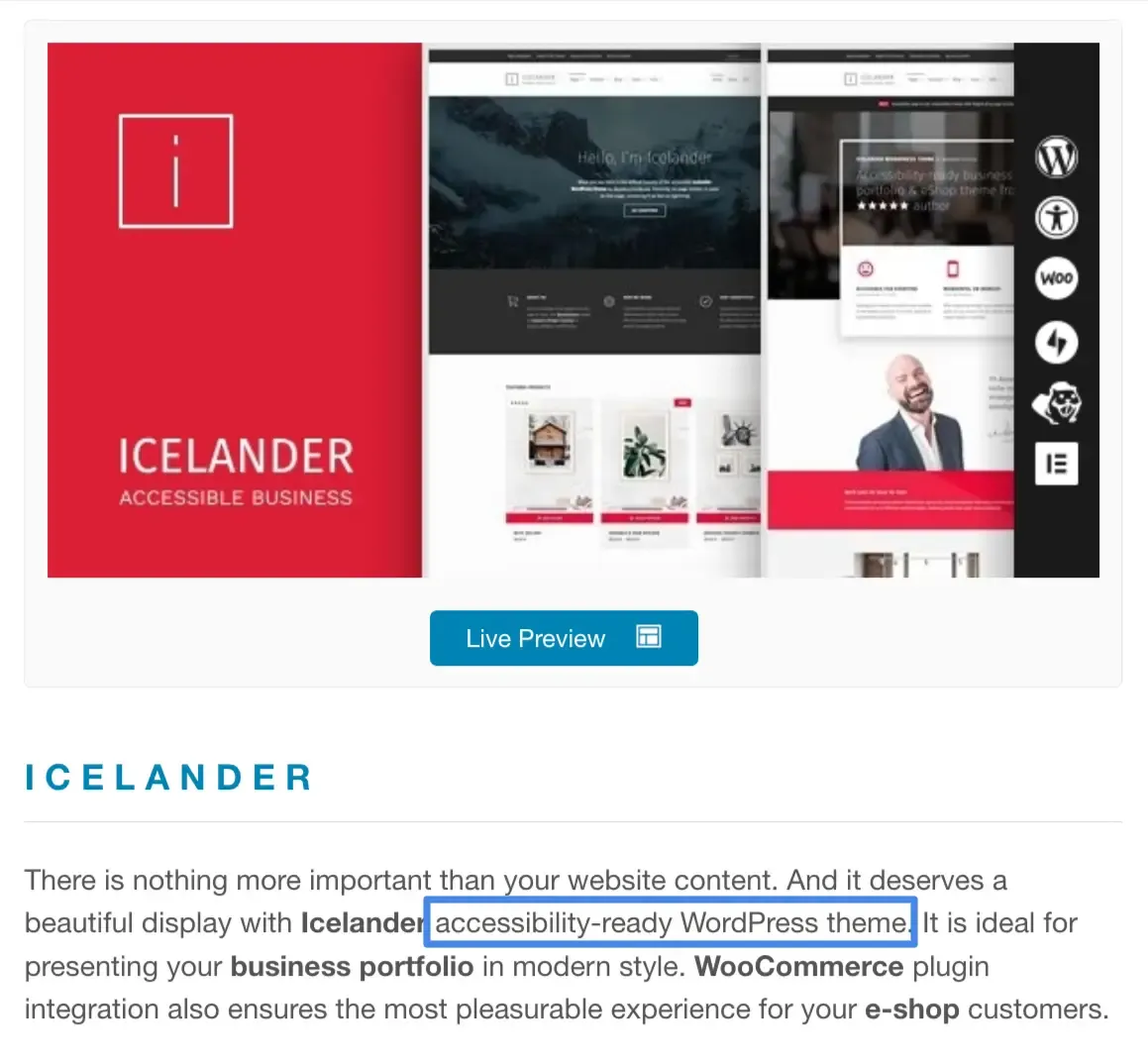
If you are on a page builder or a multipurpose theme, be aware that many prioritize visual flexibility over clean, accessible markup. That does not make them unusable, but it means you will have more manual checking to do, especially around keyboard operability and heading order.
Step 2: Get Your Content Right (Where Most Issues Live)
Here is the truth most WordPress accessibility guides underplay: the majority of accessibility issues on a real site come from content, not code, and content is added continuously by people who are not thinking about accessibility. These are the habits that matter most.
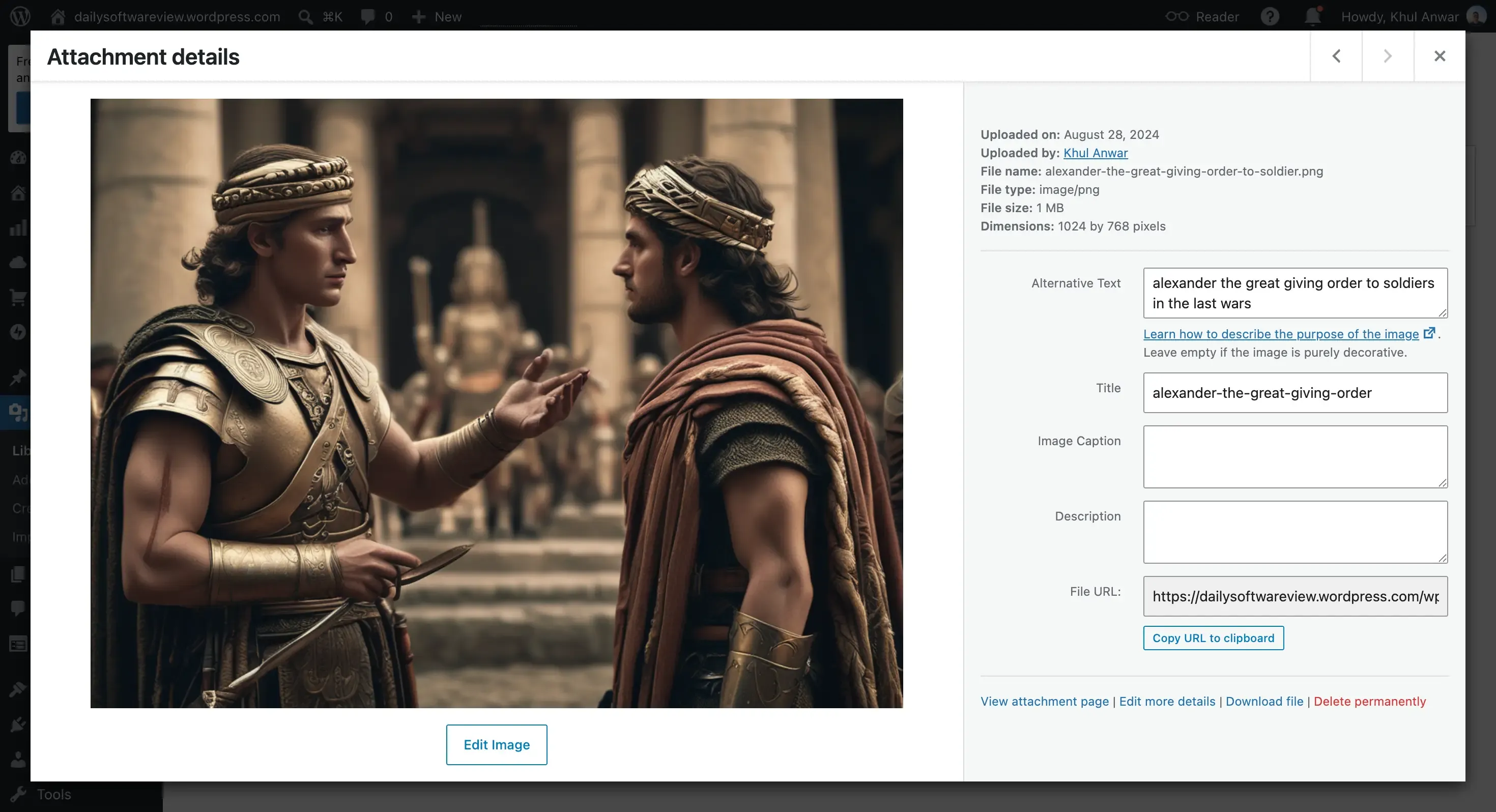
Add alt text to every meaningful image. WordPress has an alt text field right in the media library and the block editor. Use it. Describe what the image conveys. Mark purely decorative images with empty alt text so screen readers skip them. Missing alt text is the single most common accessibility failure on WordPress sites, and it also affects your SEO.
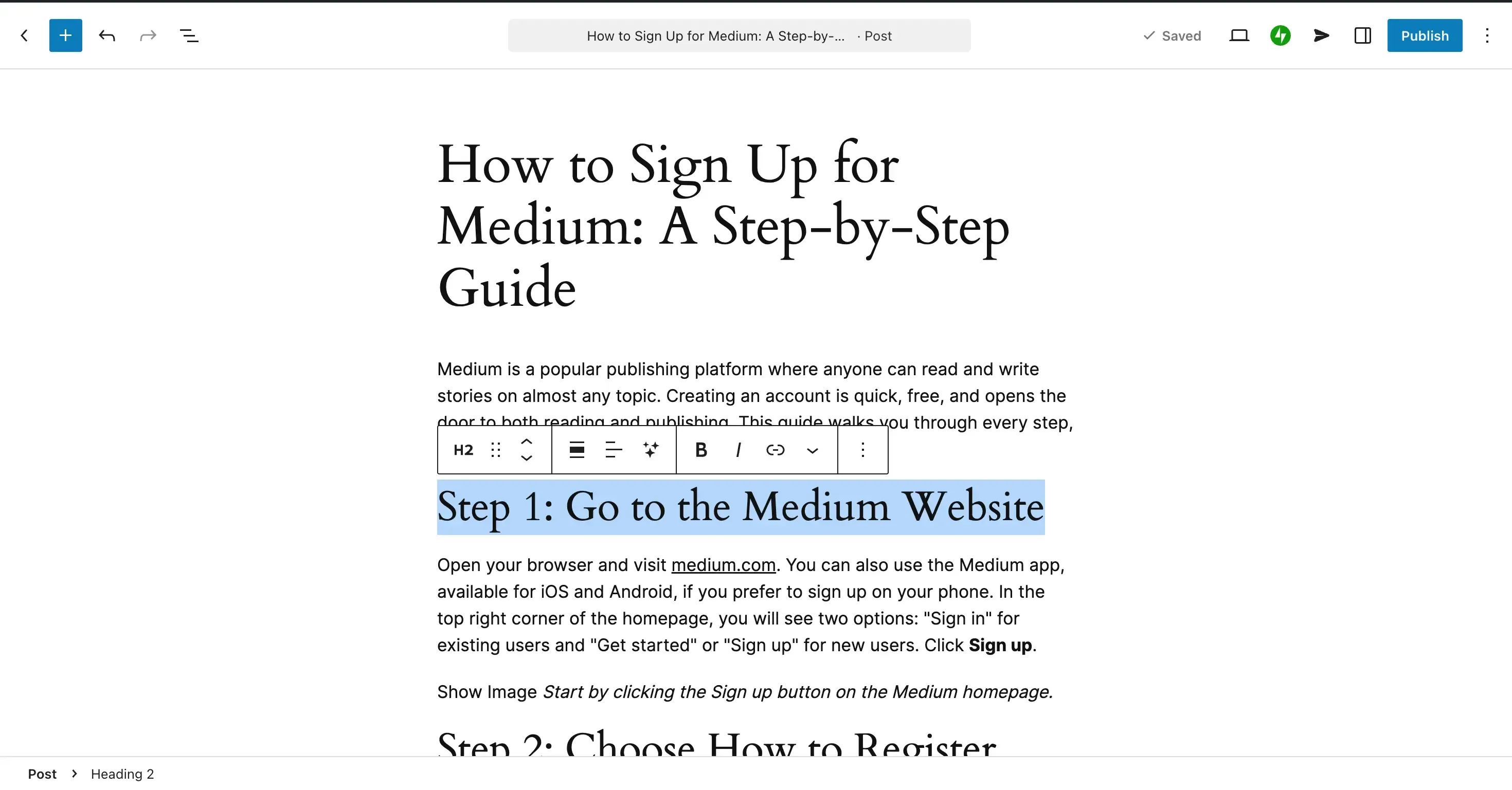
Use headings properly. Use the heading blocks (H1, H2, H3) to structure content logically, not to make text big. One H1 per page (usually your title), then H2s and H3s in a sensible nested order. Screen reader users navigate by headings, so a logical structure is essential.
Write descriptive link text. "Click here" and "read more" tell a screen reader user nothing. Link text should make sense out of context, like "download the accessibility checklist."
Do not rely on color alone. If you mark required fields, errors, or links with color only, colorblind users miss the signal. Add text or an icon as well.
Check contrast. Ensure text has enough contrast against its background (WCAG asks for at least 4.5 to 1 for normal text). This often comes down to your theme and any custom colors you set.
Step 3: Use Accessibility Plugins the Right Way
Plugins are useful for finding and helping you fix accessibility issues. They are not useful for pretending to fix them automatically. Know the difference, because it matters legally and practically.
Helpful: testing and authoring plugins. Accessibility checker plugins scan your content and flag issues (missing alt text, contrast problems, empty links) right in the WordPress admin, so you can fix them as you publish. These are genuinely useful because they catch problems at the source. Some editor plugins also enforce good practices while you write.
Not a solution: accessibility overlay widgets. These are the pop-up tools that add an accessibility button to your site and promise "instant WCAG compliance" or "ADA compliance in one line of code." They do not deliver it. Overlays sit on top of your site and attempt to patch issues with JavaScript, but they cannot fix the underlying markup, they frequently interfere with the assistive technology users already have, and, critically, they have not held up as a legal defense. Many businesses using overlays have still been sued for inaccessibility. Accessibility experts and the disability community broadly advise against them. Fix the actual site instead.
This distinction answers a question people sometimes search: how to "turn off" accessibility on a website. If you have an overlay widget you want to remove, you disable it like any other plugin or script, but the better move is almost always to remove the overlay and make the underlying site genuinely accessible, rather than relying on a widget that does not work.
Step 4: Do the Manual Checks No Plugin Can
Automated tools, including WordPress accessibility plugins, catch only about a third of WCAG issues. The rest need a human. Two checks cover most of the gap and neither requires special software.
Keyboard test. Put your mouse aside and navigate your site with the Tab, Enter, and arrow keys. Can you reach and use every link, menu, button, and form field? Can you always see where the focus is? Can you complete a purchase or contact form? Keyboard problems are common on WordPress sites with fancy menus and page builders.
Screen reader test. Turn on the screen reader built into your device (VoiceOver on Mac, Narrator on Windows) and try to use your site with your eyes closed. It is the fastest way to feel the barriers a real user experiences.
Why WordPress Accessibility Never Stays Fixed
Here is the part that catches site owners out, and it is specific to how WordPress works. You can make your site fully accessible today, and it will start drifting out of compliance almost immediately, because WordPress sites change constantly and every change is a chance to reintroduce a barrier.
Consider what happens in a normal month on a WordPress site:
- Someone publishes a blog post with images and forgets the alt text
- A theme update changes the color scheme and quietly breaks contrast
- A new plugin adds a form with unlabeled fields
- A page builder update changes how headings render, breaking the structure
- A contributor pastes in content with "click here" links and color-coded text
None of this throws an error. The site looks fine to a sighted admin clicking around with a mouse. But each change chips away at accessibility, and by the time anyone notices, the site has been non-compliant for weeks or months. This is the same silent-decay pattern that affects every part of a website after launch, mapped in our website decay timeline, and accessibility is one of the areas where it does the most quiet damage, because the people affected often cannot use the site to tell you.
A one-time accessibility fix, or even a professional audit, only describes the site as it was on that day. On a living WordPress site, that is not enough.
Step 5: Monitor Accessibility Continuously
The way to keep a WordPress site accessible is to check it continuously, so a barrier introduced by a new post or a theme update is caught when it appears, not months later.
This is one of the areas where Kapient covers ground most WordPress tools do not. Under its Security and Compliance dashboard, Kapient runs a WCAG Accessibility check against the WCAG 2.1 AA standard and gives your site an accessibility score, with a compliance breakdown across images, color contrast, navigation, and forms, the exact areas where WordPress content changes tend to introduce problems. Because it runs continuously as part of a scan across more than 74 technical and quality factors, a barrier added by a new post or a plugin update shows up in the score rather than accumulating unseen.
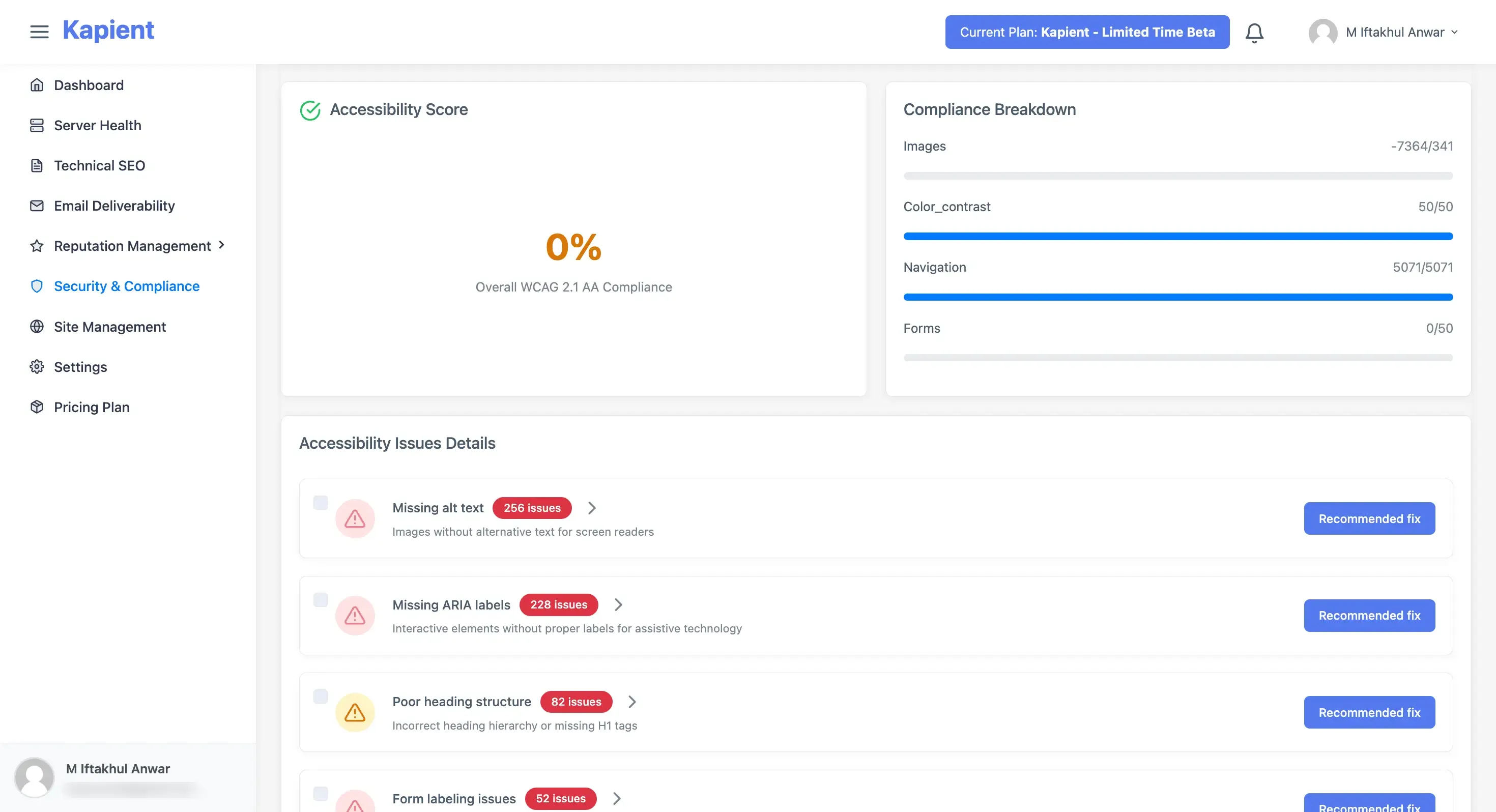
When it finds something, the flagged issue in your Kapient dashboard carries a "Recommended fix" button that reveals plain-English steps for correcting it. And because Kapient monitors from outside your site rather than as another plugin, it adds no load to your WordPress install and works the same whether you are on a page builder, a custom theme, or a standard setup. To be clear about scope, this covers the machine-detectable share of WCAG, which is a large portion of the most common issues, but it does not replace periodic manual keyboard and screen reader testing, and it is not legal advice. What it does is make sure the issues a machine can catch never quietly pile back up between manual reviews.
For a freelancer or agency managing WordPress client sites, continuous accessibility monitoring is a strong care plan inclusion, because a client's site drifts out of compliance the moment they start adding their own content, and catching it early is far better than a demand letter later. It fits naturally into a website care plan.
Your WordPress site was accessible at launch. Is it accessible today? Kapient continuously scores your WordPress site against WCAG 2.1 AA alongside 74+ other health factors, flags new barriers as they appear, and shows you exactly how to fix them, with no plugin to slow your site down. Start monitoring free and keep accessibility from quietly slipping away.
Frequently Asked Questions
How do I make my WordPress site WCAG compliant?
Start with an accessibility-ready theme, then get your content right: alt text on images, logical heading structure, descriptive link text, good color contrast, and no reliance on color alone. Use an accessibility checker plugin to catch issues as you publish, do manual keyboard and screen reader testing for what plugins miss, and avoid overlay widgets. Because content changes reintroduce issues, monitor accessibility continuously rather than fixing it once.
What is the difference between WCAG and ADA?
WCAG (Web Content Accessibility Guidelines) is the technical standard that defines what makes web content accessible. The ADA (Americans with Disabilities Act) is the US law prohibiting discrimination against people with disabilities. The ADA does not publish its own web checklist, so courts use WCAG 2.1 Level AA as the benchmark. In practice, you make a site accessible by meeting WCAG, and meeting WCAG is what satisfies ADA expectations for websites.
What is the best WordPress accessibility plugin?
The most useful plugins are accessibility checkers that scan your content and flag issues like missing alt text and low contrast directly in the WordPress admin, so you can fix them at the source. These help you find and fix real problems. Avoid overlay or "one-click compliance" plugins, which claim to fix accessibility automatically but do not work, interfere with assistive technology, and are not a legal defense.
Do accessibility overlay widgets make WordPress ADA compliant?
No. Overlay widgets that promise instant WCAG or ADA compliance do not deliver it. They sit on top of your site and cannot fix the underlying markup, they often interfere with the assistive technology users already rely on, and they have repeatedly failed as a legal defense, with many businesses using them still being sued. The reliable approach is to fix the actual site to meet WCAG, not to install an overlay.
Is WordPress good for accessibility?
Yes, WordPress can be very accessible. The platform has a dedicated accessibility team and coding standards, and accessibility-ready themes give you a strong foundation. But a specific site's accessibility depends on your theme, plugins, and content choices, not on WordPress alone. A well-built WordPress site with accessible content easily meets WCAG; a poorly configured one does not, regardless of the platform.
How do I turn off accessibility on a website?
If you mean removing an accessibility overlay widget, you disable it like any other plugin or script in WordPress. But rather than turning accessibility features off, the better approach is almost always to remove the overlay (which does not truly make a site compliant anyway) and make the underlying site genuinely accessible, so real users with assistive technology can use it without a widget getting in the way.
How often should I check my WordPress site's accessibility?
Continuously, because WordPress accessibility breaks again every time you publish a post without alt text, update a theme, or add a plugin. A one-time audit only reflects the site on the day it was checked. Ongoing monitoring catches a new barrier when it is introduced, which is especially important on WordPress, where content is added frequently by people not focused on accessibility.
Written by
Khul Anwar
Growth
Khulanwar leads content and growth at Kapient, where the team helps small businesses and agencies keep their websites healthy, fast, and compliant. He writes about website monitoring, technical SEO, and the maintenance work that quietly keeps sites from breaking after launch.
Related articles

10 Common WCAG Failures and How to Fix Them
September 22, 2026
How to Check if Your Website Meets WCAG Accessibility Standards
September 10, 2026

Web Accessibility Monitoring: The Complete Guide
September 4, 2026
Website Accessibility for Agencies: Turning Compliance Into a Service
September 16, 2026